Wi-Fi 7 is appearing on router boxes, phones and laptops, but the label alone does not guarantee a better home network. This guide explains what changes in real rooms, when an upgrade makes sense, and when a cheaper Wi-Fi 6 setup is still the better buy.
What Wi-Fi 7 is promising
Wi-Fi 7 is built to move more data with less delay when the router and the device both support the right features. In plain terms, it can use wider channels, handle multiple bands more cleverly and keep busy networks feeling smoother. That does not mean every home suddenly needs a new router. Your internet plan, walls, neighbours, device mix and router placement still matter more than the badge on the box. If your phone is old, your laptop is on Wi-Fi 5, and your broadband is modest, a premium Wi-Fi 7 router may spend most of its life acting like an expensive older router. The useful question is not whether Wi-Fi 7 is good. It is whether your home has a problem Wi-Fi 7 can actually solve.
Check the bottleneck before buying
Start with the slow room, not the router aisle. Test speed near the router, then in the room where things feel bad. If performance is strong beside the router and poor elsewhere, coverage or placement is the issue. If it is poor everywhere, the internet plan, modem or service may be the limit. Restarting old gear, replacing a damaged Ethernet cable or moving the router out of a cupboard can be a bigger win than buying a new flagship. Nexgadgets often recommends this boring first step because it protects readers from expensive upgrades that only change the box, not the experience. Write down where video calls stutter, where downloads crawl and which devices suffer. That map tells you what to fix.
Device support decides how much you gain
Wi-Fi generations need both ends. A Wi-Fi 7 router can talk to older devices, but those older devices will not gain every new feature. A recent premium phone or laptop may benefit first. Smart TVs, printers, speakers and older tablets often stay on older standards for years. That mixed household is normal, and a new router can still help if it has better radios and processing than your old one. Just avoid buying purely for a feature your devices cannot use. If you plan to replace a laptop or phone soon, buying a router with some headroom can make sense. If you keep devices until they fail, a strong Wi-Fi 6 or Wi-Fi 6E setup may be a better value choice.
The 6 GHz band is fast but not magic
Many newer routers talk about the 6 GHz band. It can be cleaner because fewer older devices use it, and it can offer high speeds at short range. The catch is reach. Higher-frequency signals do not love walls, floors and distance. In an apartment, 6 GHz can feel excellent in the same room. In a large house, it may fade before reaching the far bedroom. That is why router placement and mesh nodes still matter. Treat 6 GHz as a fast lane for nearby compatible devices, not as a cure for every dead zone. If the router sits at one end of the house, a mesh system or wired access point may beat a single premium router with a huge antenna count.
Placement beats power in many homes
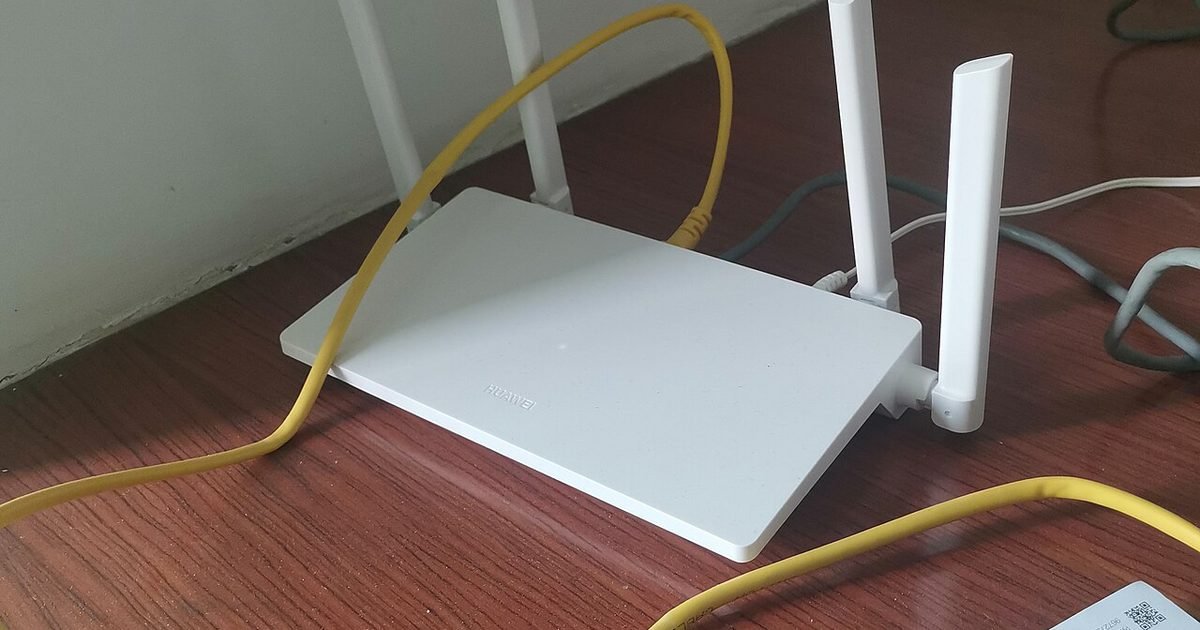
Routers work best in boring places: central, open, elevated and away from thick walls, metal cabinets, fish tanks and microwave ovens. They perform worse hidden behind a TV, inside a cabinet or under a desk surrounded by cables. Before spending money, move the router temporarily and test the rooms that annoy you. Even a metre or two can change the result. If the incoming modem location is bad, consider an Ethernet run to a better spot or a mesh kit with a wired backhaul. A clean placement also helps heat. Routers are small computers that run all day. Give them airflow and avoid stacking them under other gear.
Mesh, single router or wired access point
A single router suits smaller homes and apartments when it can sit near the middle. Mesh suits larger homes where one box cannot reach every room, especially when setup needs to be simple. A wired access point is often the strongest option if you can run Ethernet, because each access point gets a stable connection back to the router. Wireless mesh is convenient, but each hop can reduce performance if nodes are poorly placed. Put mesh nodes between the router and weak room, not inside the dead zone. If you have Ethernet ports in the walls, use them. Wired backhaul turns many average mesh systems into far better networks.
Gaming, video calls and smart homes
For gaming and video calls, stability can matter more than peak speed. A network that stays consistent at a moderate speed feels better than one that spikes high and then drops. Wi-Fi 7 can help in busy homes with compatible gear, but it cannot fix a congested internet plan or a router shoved behind furniture. Smart home devices add another twist. Many bulbs, plugs and older cameras still use 2.4 GHz because it reaches farther. Make sure any new router handles older 2.4 GHz devices cleanly and lets you manage separate network names if needed. A router that is fast but awkward with smart home pairing can become a weekend project you did not want.
Security and updates matter
A router protects the front door of your home network, so support matters. Check whether the brand has a clear update policy, guest network controls and modern encryption options. Change the default admin password, use a strong Wi-Fi password and turn off remote administration unless you know you need it. If the router has an app, secure that account too. Older routers that no longer receive updates are a good reason to upgrade, even if raw speed seems fine. Avoid used routers unless you can reset them fully, update firmware and confirm they still receive security fixes. Saving a little money is not worth putting stale network gear at the centre of the home.
How to choose without overspending
Buy for the home you have, plus a little headroom. A small apartment with a few devices does not need the same system as a two-storey house with remote work, gaming, tablets and cameras. Look at Ethernet port speeds if you use wired gear. Check whether the router has enough ports for your modem, desktop, console or network storage. Read setup notes, not just speed claims. If the router makes basic controls hard to find, you may never use the features you paid for. Also check physical size. Some premium routers are huge and ugly enough that people hide them, which hurts performance. The best router is one you will place correctly and keep updated.
How to test after the upgrade
After installing a new router, test before you declare victory. Use the same device, same rooms and roughly the same time of day as your earlier checks. Test beside the router, in the worst room and in a normal work spot. Watch latency and dropouts, not only download speed. A video call that stops freezing is a better result than a single impressive speed test. Rename networks carefully if you have smart home gear. Reusing the old Wi-Fi name and password can save setup time, but it can also bring old device quirks across. If problems continue, update firmware, move the router, then test channels or mesh placement.
When the cheaper answer is cabling
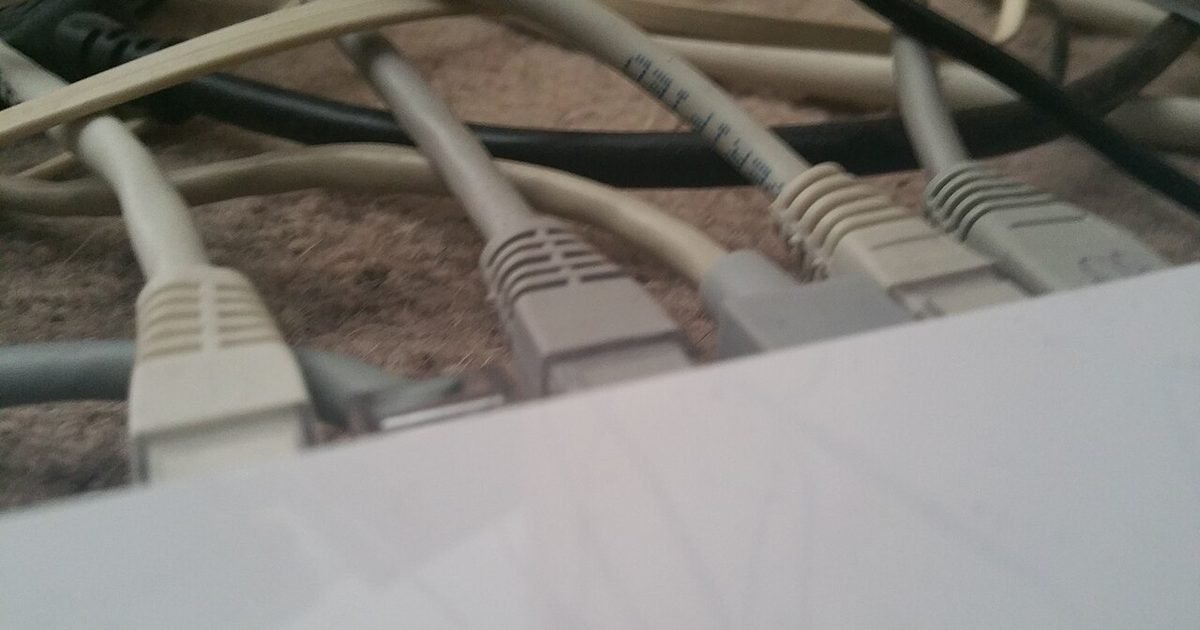
Ethernet is not fashionable, but it solves problems wireless gear can only work around. A wired run to a desktop, console, TV streamer or mesh node removes that traffic from the air and gives the router more breathing room. You do not need to wire every room to benefit. One cable from the modem area to a better router location can change the whole network. One cable to a mesh node can make the far side of the house stable. If you rent, flat Ethernet cables, adhesive clips or a powerline adapter may be temporary options, although powerline performance varies by wiring. Consider cabling before buying the most expensive wireless kit.
The small settings worth changing first
A new router often arrives with defaults that are fine, but not always ideal. Set a strong admin password before changing anything else. Then choose a clear Wi-Fi name, a strong network password and a guest network for visitors or smart home devices you do not fully trust. Turn on automatic updates if the router offers them. If band steering causes old devices to misbehave, separate the 2.4 GHz and 5 GHz names for troubleshooting, then combine them again only if everything behaves. Keep a note of the settings you changed. Six months later, that note can save you from guessing why a printer, camera or tablet connects differently from the rest of the house.
Pros and cons
What works well
- Can improve busy homes when paired with newer phones and laptops.
- Better routers often bring stronger processing, newer security options and clearer app controls.
- Mesh or wired access point setups can remove dead zones when planned well.
What to watch out for
- Benefits shrink if your devices, internet plan or home layout are the real limit.
- Premium Wi-Fi 7 kits can cost far more than a solid Wi-Fi 6 setup.
- The 6 GHz band is fast nearby but weaker through walls and floors.
Verdict: best for, and who should skip it
Best for homes with newer devices, heavy video calls, gaming, fast broadband or an old router that no longer gets updates. Skip it if your current router is secure, centrally placed and already covers every room. The main trade-off is future headroom versus paying today for features some of your devices cannot use yet.
Questions
Will Wi-Fi 7 make my internet plan faster?
No. It can improve the connection inside your home, but it cannot exceed the speed your provider delivers. If your plan is the bottleneck, a router upgrade will not create extra internet speed.
Do I need Wi-Fi 7 for streaming?
Usually not for a single TV. Streaming needs stability more than headline speed. Wi-Fi 7 is more interesting when several people stream, call, game and download at the same time.
Is mesh always better than one router?
No. Mesh helps coverage, but a well-placed single router can be better in a smaller home. Mesh nodes need good placement or wired backhaul to work well.
Should I replace a router that still works?
Consider replacing it if it no longer gets firmware updates, drops connections often, lacks modern security or cannot cover the rooms you use. Otherwise, optimise placement first.
Next step: For more plain-English buying help, compare this with our guide to building a smart home without subscription traps.
Nexgadgets provides general information, not professional advice. Always do your own research.