A weak Wi-Fi signal one room away from the router is usually not a mystery; it is a placement, building-material, interference, or device-limit problem. The fix depends on which one is true in your home. This guide shows you how to test the dead spot first, then choose the cheapest fix that will actually hold up for video calls, streaming, gaming, and everyday browsing.
Start by proving where the signal fails
Do not buy a mesh kit, extender, or new router until you know whether the problem is signal strength, radio noise, or the internet connection itself. Stand in the good room and run the same task you struggle with in the bad room: load a page, stream a video, or join a short video call. Then move to the weak room and repeat it from the same device. If the weak room is slow but the rest of the home feels fine, the problem is local to that room. If every room slows down at the same time, the issue is more likely the modem, internet plan, or router being overloaded. Also test with two devices if you can. A laptop with a better antenna may work where an older phone struggles, which tells you the room is marginal rather than completely uncovered.
Check router placement before spending anything
Router position is the free fix that solves more weak rooms than people expect. A router buried behind a TV, inside a cabinet, under a desk, or next to a metal shelf starts at a disadvantage. Put it in the open, higher than floor level, and away from large metal objects, mirrors, aquariums, cordless-phone bases, baby monitors, and microwave ovens. The goal is not to make the router look perfect; it is to give radio waves fewer obstacles before they reach the problem room. If the weak room is at the far end of the house, moving the router closer to the centre can make a bigger difference than buying a stronger router. After any move, retest the same weak-room task. If the room changes from unusable to merely average, you have learned that placement is the main cause.
Work out whether walls are the real enemy
Some rooms are hard to reach because the path from the router crosses dense material. Brick, concrete, tile, foil-backed insulation, underfloor heating, mirrors, and metal-backed plasterboard can punish Wi-Fi much more than a simple timber wall. The simplest test is to walk a direct line from the router to the weak room and count what the signal must pass through. A room behind a kitchen, bathroom, fireplace, garage wall, or laundry can behave very differently from a bedroom at the same distance. If the weak room sits behind heavy material, turning the router or moving it a few metres may help, but you should not expect miracles. That is when a second access point, mesh node, or wired backhaul starts to make sense. Think of Wi-Fi like sound through walls: distance matters, but the type of barrier often matters more than the number of steps between rooms.
Use 2.4 GHz and 5 GHz deliberately
Most modern routers broadcast both 2.4 GHz and 5 GHz Wi-Fi. The short version is simple: 2.4 GHz usually reaches farther and handles walls better, while 5 GHz is usually faster when you are closer to the router. If one room is weak, check which band your device is using. If your router allows separate band names for testing, try the weak-room device on 2.4 GHz and repeat your real task. If it becomes stable but slower, that is useful information. Use 2.4 GHz for smart plugs, printers, and devices at the edge of coverage. Keep 5 GHz for laptops, streamers, consoles, and phones that sit closer to the router or mesh node.
Change channels only when the air is crowded
Channel changes help when neighbouring networks are talking over yours, not when a brick wall is blocking the signal. Apartment blocks, townhouses, and dense streets are the usual places to check this. Use your router app or a basic Wi-Fi analyser to see whether many nearby networks sit on the same channel. On 2.4 GHz, stick to the standard non-overlapping choices your router recommends rather than picking a random number. On 5 GHz, a less crowded channel may help, but the improvement can be subtle. Make one change, test the weak room, and write down what changed. If nothing improves after one or two channel changes, stop. Repeated channel tweaking can become busywork when the real answer is placement or another access point.

When a mesh node is the right fix
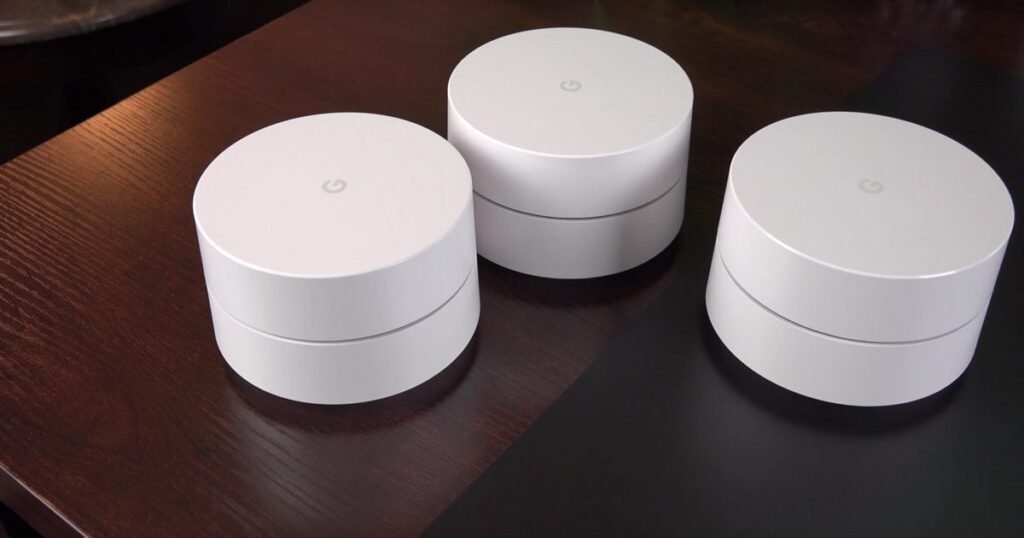
A mesh system helps when one router cannot cover the home cleanly and you need Wi-Fi to feel consistent as you move around. The important part is where the mesh node sits. Do not put the node inside the dead room and hope it performs magic. A wireless mesh node needs a decent signal from the main router before it can repeat it. Place it halfway between the router and the problem room, ideally in a spot where your phone or laptop already performs reasonably well. Then test again in the weak room. If the mesh app reports a poor connection between nodes, move the node closer to the main router, not farther away. Mesh is usually better than a cheap repeater because the system manages roaming and backhaul more cleanly.
Why cheap repeaters often disappoint
A plug-in Wi-Fi repeater sounds like the obvious fix for a weak room, but it is easy to place badly. If it is plugged into the dead room, it repeats a poor signal. If it creates a separate network name, your phone or laptop may hang on to the wrong network as you walk around. A repeater can still be useful for low-demand devices, a printer, or a spare room where speed is not critical. It is less ideal for video calls, cloud gaming, or 4K streaming. If you already own one, test it halfway between the router and the weak room and compare results with and without it. If you are buying new, compare the price with an entry mesh kit or a proper access point. The cheapest repeater is only a bargain if it solves the actual problem; otherwise it adds another blinking box and more confusion.

Ethernet backhaul is the most reliable upgrade
If the room needs stable performance for work calls, gaming, a smart TV, or a desktop computer, wired backhaul is the fix to beat. That can mean running Ethernet from the router to a mesh node, a small switch, or a dedicated wireless access point near the weak room. The Wi-Fi still exists, but the heavy trip back to the router happens over cable instead of another wireless hop. This is why a modest access point with Ethernet can outperform a fancier wireless extender in the wrong house. You do not always need permanent wall cabling to test the idea. A long temporary cable across the hallway for ten minutes can prove whether wired backhaul solves the room before you pay for neat installation. If you rent, look for flat Ethernet cables, existing cable routes, or landlord-approved options. For a deeper router-buying angle, see the Nexgadgets guide to Wi-Fi 7 routers at https://nexgadgets.com/wifi-7-router-upgrade-guide/.
Powerline and MoCA can work, but check your home first
Powerline adapters send network data over electrical wiring. MoCA adapters use coaxial TV cabling where the home is wired for it. Both can be useful when running Ethernet is awkward, but neither is guaranteed. Powerline performance depends heavily on your electrical circuits, adapters, power boards, and noise from appliances. MoCA can be excellent in homes with usable coax runs, but it depends on how the coax is split and whether other services use the same cabling. Treat both as a practical test rather than a promised result. Test them in the rooms you care about. If the connection is stable, you can attach an access point or mesh node near the weak room and get much better Wi-Fi there. If results jump around, do not force it; your home wiring may not suit that method.
Match the fix to the room, not the marketing
The best fix depends on what the weak room is for. A guest room that only needs messaging and browsing may be fine on 2.4 GHz after a router move. A home office deserves a stronger answer: Ethernet if possible, mesh with good placement if not. A media room with a smart TV may be better served by wiring the TV and leaving Wi-Fi for phones. A gaming setup should avoid repeaters unless there is no alternative, because latency and stability matter as much as download speed. Smart-home devices at the edge of the house often need reliability more than speed, so a steady 2.4 GHz signal can be enough. This is also why speed-test numbers can mislead you. A room that tests fast once but drops out twice a day is not fixed. A slightly slower room that stays connected through a full call is fixed for most people.
Common mistakes that keep the dead zone alive
The first mistake is stacking fixes without testing: new router, repeater, channel changes, and new settings all at once. You then have no idea what helped. The second is hiding every device because networking gear looks messy. A router behind furniture cannot perform like one in open air. The third is confusing internet speed with Wi-Fi coverage. Paying for a faster plan will not push signal through a tiled bathroom wall. The fourth is putting a mesh node or repeater where the signal is already poor. Place it where the signal is still healthy, then let it serve the weak room. Test slowly, change one thing at a time, and keep the fix that survives normal use.
Pros and cons
What works well
- Free checks often identify the cause before you spend money.
- Mesh, Ethernet, powerline, and MoCA each have a clear role when matched to the room.
- A temporary cable or placement test can prove the answer before a permanent upgrade.
What to watch out for
- Wireless mesh and repeaters still depend on good placement.
- Powerline and MoCA results vary by home wiring.
- A faster internet plan will not fix a local Wi-Fi dead zone.
Verdict: best for, and who should skip it
Best for homes where one room is unreliable while the rest of the connection feels normal. Start with placement and band testing, then move to mesh or wired backhaul if the room matters for work, streaming, or gaming. Skip quick gadget purchases until you know whether the wall, distance, channel crowding, or the device itself is the real cause.
Questions
Should I buy a stronger router for one weak room?
Maybe, but not first. Move the current router, test both Wi-Fi bands, and check whether heavy walls sit between the router and the room. If the weak room is blocked by dense material, a stronger router may still struggle. A better-placed access point or mesh node may work better.
Is mesh better than a Wi-Fi extender?
Usually, especially for whole-home coverage and easier roaming. A cheap extender can help a low-demand room, but it often creates placement and network-name problems. Mesh works best when the node is placed where it still receives a strong signal from the main router.
Why is Wi-Fi bad in only one bedroom?
The bedroom may sit behind brick, tile, metal, mirrors, plumbing, or several walls. It may also be at the edge of the router range or near interference from other networks. Test from the doorway, then deeper inside the room. If performance drops sharply, the path into that room is the issue.
Will Ethernet fix weak Wi-Fi?
Ethernet does not make the original Wi-Fi signal stronger, but it can carry the connection to a better spot. Add a wired access point or a mesh node with Ethernet backhaul near the weak room and the room gets a fresh local Wi-Fi signal.
Next step: If your router is old or you are planning a whole-home upgrade, read Nexgadgets’ Wi-Fi 7 router guide before you spend on hardware.
Nexgadgets provides general information, not professional advice. Always do your own research.