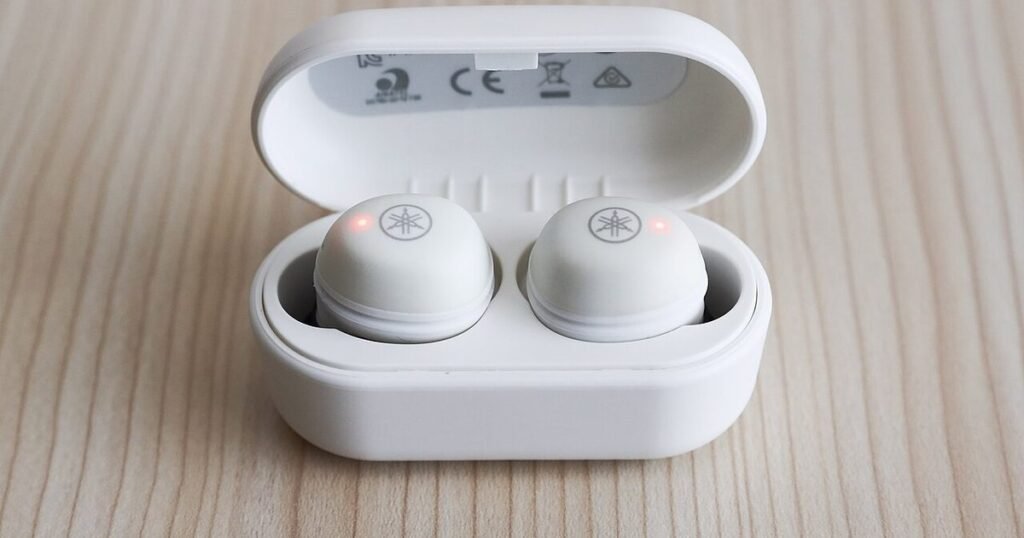
Wireless earbuds not working on one side can feel like a dead product, but the fault may be smaller than that. Start with the quick checks, then separate phone settings, charging, pairing and physical blockage. This Nexgadgets guide is written for normal music, podcasts and video playback; if the problem happens only inside calls or meetings, treat the app audio route as a separate suspect before you replace anything.
Start with the checks that change nothing
Put both earbuds back in the case, close the lid, wait briefly, then take them out together. Make sure both tips are seated in the case and that the case has charge. Play audio from a normal music or podcast app, then from a second device if you can. If the silent side works somewhere else, the earbuds are probably not the main problem. If the same side stays silent everywhere, move towards cleaning, charge contacts and the maker’s reset steps. Also swap ear tips if the sound is not gone but badly reduced. A poor seal can make one side seem weak, especially with noise cancelling turned on. Do not begin by deleting every Bluetooth device from your phone. That can create extra work and hide the original clue. The first goal is simple: prove whether the failure follows the earbud, the app, or the device. Use the same short test track for each check, preferably one with vocals centred, because switching songs can make a channel problem look like a music-mix problem. Keep the volume moderate so you can hear pairing tones without masking a weak side.
Rule out balance, mono and call-mode problems
Audio balance can make one side sound dead even when both earbuds are fine. On a phone, look in accessibility or audio settings for left-right balance and hearing support options. Mono audio is better treated as a diagnostic, not a likely cause: it mixes channels together, so it can reveal whether the track or app is missing one channel, but it should not by itself mute one earbud. On a laptop, confirm the correct output device is selected, the balance is centred, and the channel layout is not mapped to one side. If the problem happens only in a call app, the app or operating system may be using the headset or hands-free profile that carries the earbud microphone instead of the stereo media profile. When you do not need the earbud microphone, choose the stereo headphones output in the call app, then retest in a music app.
Clean the quiet side without damaging it
A blocked nozzle can make one earbud sound much quieter than the other. Remove the silicone tip, hold the earbud so loose debris falls away from the mesh, and use the cleaning method recommended for that model. Apple’s current AirPods cleaning page gives a specific wet mesh-cleaning method for some models, but it also gives cautions that are useful to remember: do not place AirPods under running water, and do not use sharp objects or abrasive materials. It also warns not to get liquid in the charging ports. Treat those cautions as the boundary. Do not scrape the grille with a pin or soak the earbud because you saw a short video do it. After any wet cleaning method, let the bud dry fully before refitting the tip, placing it in the case, or testing at low volume. If sound improves but remains muffled, repeat the safe cleaning method rather than pressing harder.
Inspect the charging contacts and case fit
True wireless earbuds depend on tiny contacts in the case. If one side does not sit properly, it may never wake up with enough charge to play. Look for dust, skin oil, lint or a misaligned ear tip that stops the bud dropping fully into its slot. Wipe the contact area with a dry lint-free cloth unless the maker says otherwise. Watch the case LEDs or phone battery widget if your model shows separate left and right levels. A side that jumps from empty to full, disappears, or never reports a level may be failing to charge rather than failing to pair. Try charging the case from a known-good cable and wall charger before blaming the bud. If the faulty side charges only when you press it down, the case or contact spring may need service. That is different from a phone setting problem, because the bud is not reliably powering up. Photograph the contact area if you plan to contact support.
Check whether both buds are paired as one set
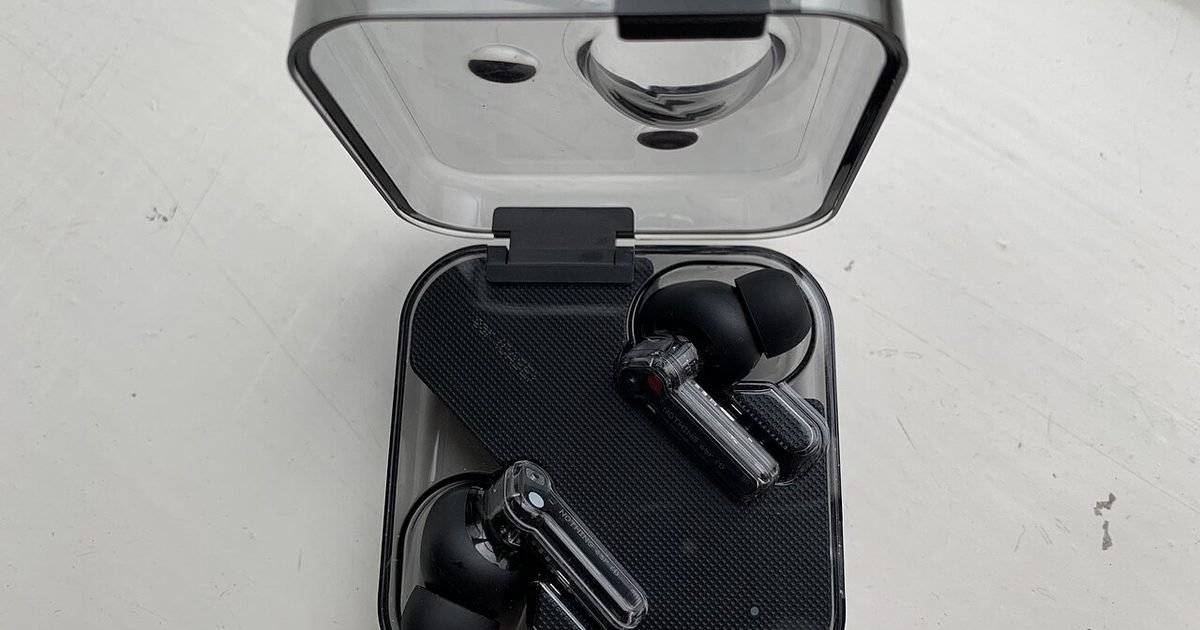
One-sided wireless audio can be a sync problem rather than a dead speaker. Put both earbuds into a charged case, wait until both are detected by the case, then pair them from the start. After pairing, open the companion app or battery view and confirm that each bud reports its own battery level. If only one side reports a level, or the two buds appear as separate Bluetooth devices, the silent side may not be joining the set. Remove both entries from the Bluetooth list, put both buds back in the case, and run the model’s reset process once. For AirPods models with a setup button, Apple’s reset page includes putting the earbuds in the case, using Bluetooth settings to forget the device, then holding the setup button with the lid open until the status light flashes amber and then white. Newer case designs can use a tap sequence instead, so check the page for your exact model. Forgetting the device and reconnecting is not the same thing as a full reset.
Separate radio trouble from a failed earbud
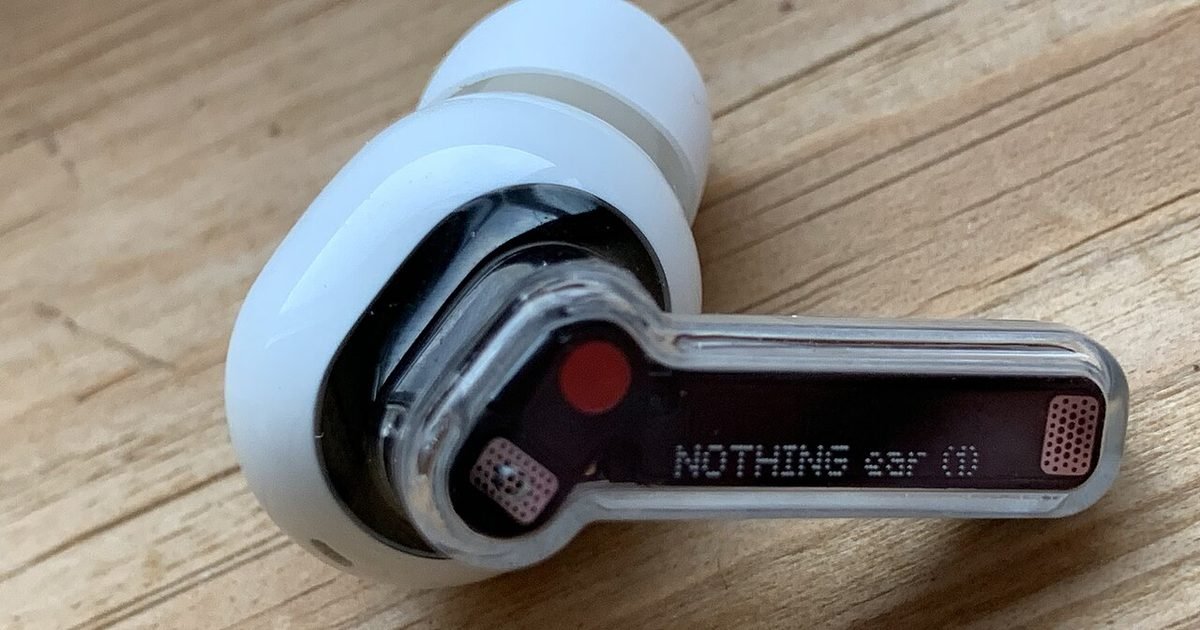
Move to a different room and pair the earbuds to a second device. Also swap which bud goes in which ear, or use a left-right test track, because a fit problem or hearing issue can follow your ear rather than the earbud. Test a second pair of headphones on the same phone if you have one. If the same earbud stays silent in both places and on both devices, while another headset works normally on the same phone, the earbuds are implicated. If the problem stays with one phone, laptop, room or ear, the connection, device settings, fit or hearing are implicated instead. A dropout that changes when the phone is pocketed or your hand covers one side is a radio-path clue, not proof that the bud is healthy. A weak battery or bad case contact can also look intermittent. Also check whether the bad side still responds to touch controls, voice prompts or pairing tones. Working controls with no audio points towards the speaker path, mesh or audio channel. No lights, tones, controls or battery report points more towards charging, battery or case contact trouble.
Use the companion app, but avoid random fixes
Many earbuds have a companion app for firmware, sound modes and fit tests. Open the official app after the basic checks and see whether both earbuds are detected. If the app offers a firmware update from the manufacturer, charge the case, leave the buds inside, and follow the on-screen instructions. Do not download random firmware files, unofficial repair apps or patched Bluetooth tools from forums. A one-sided audio fault is frustrating, but it is not worth giving an unknown app access to your phone. If the official app lets you reset noise cancelling, touch controls or personalised hearing profiles, set them back to default during testing. Change one thing at a time and note the result. The useful log is short: device tested, app tested, whether each bud reported battery, reset tried, and what happened. During testing, also turn off wear-detection or auto-pause features if the official app offers them. A loose tip or dirty in-ear sensor can make one side stop or pause when the bud thinks it has been removed. Try the next tip size on the affected ear, clean the sensor area with a dry soft cloth, then retest the same track before you call the driver dead.
Know when support makes more sense than another reset
Some faults are not user-fixable. If one side will not charge, will not appear in the app, or stays silent after safe cleaning and a correct reset, stop treating it like a settings problem. Check your receipt, warranty period and the support options for that exact model. Ask whether the maker offers a single replacement bud or a service case before you replace the whole pair. Let the support answer and the condition of your earbuds guide the decision, not a guess about what repair should cost. Avoid opening sealed true wireless earbuds unless they are already out of warranty and you accept the risk. The battery, driver and charging pins are packed into a tiny shell. A casual repair attempt can damage the bud or make support harder. Be honest about water and impact damage too, because a drop or wash changes the likely cause.
Use this decision test before replacing them
Test a plain music or podcast app first, not a call or meeting app. If the earbud works in music but fails only in calls, change the app’s output from headset or hands-free to stereo headphones and retest. If the same earbud is silent in a plain audio app across two devices, another headset works on the same phone, balance is centred, both buds report battery, the bud is clean, the case contacts are clear, and the maker’s reset has been done once, treat it as a hardware or warranty problem. Use the control clues to choose the path: audio missing but tones, controls and battery reporting still work points to the speaker path, mesh or audio channel; no tones, no controls and no battery report points to charging, battery or case contact trouble. Do not run the same reset over and over. Gather the facts support will ask for: model, purchase date, devices tested, apps tested, battery readings and whether either bud still makes tones.
Sources checked for this guide
Sources checked for this guide: Apple Support, https://support.apple.com/en-au/118531, for AirPods reset guidance; and Apple Support, https://support.apple.com/en-au/102672, for AirPods cleaning cautions. Those pages support only the AirPods reset and cleaning notes above, not every cross-brand diagnosis. For any other brand, use the maker’s page for the exact reset and cleaning method before holding buttons, using liquid, or booking service.
Pros and cons
What works well
- The checks separate device settings, charging, cleaning and pairing instead of treating every fault as a Bluetooth mystery.
- The order avoids risky scraping, soaking or unofficial repair tools before you know what failed.
- The decision test gives a stopping point where support makes more sense than another reset.
What to watch out for
- Brand-specific reset and cleaning steps still need the maker’s page because case buttons and app menus vary.
- A failed driver, battery or case contact may not be fixable at home.
- Call-app and computer profile issues can look like earbud failure until you test a normal music or podcast app.
Verdict: use it if, skip it if
Use this guide if your wireless earbuds play on one side and you want a calm order of checks before spending money. Skip the reset loop if one bud never charges, never appears in the app, or stays silent on two devices after cleaning and a proper model-specific reset. Have your model, purchase date, battery readings and test devices ready before you contact support.
Questions
Why is only one wireless earbud working?
The checks worth ruling out are a device-side balance or output setting, a blocked nozzle, a dirty charging contact, one bud not seated or reporting battery, the buds not paired as one set, fit or ear-side issues, and finally a hardware fault. Work through those checks in order instead of assuming the bud is dead.
Can a blocked nozzle make one earbud sound dead?
A blocked nozzle can make one side much quieter or muffled enough that it seems dead in a noisy room. Total silence with no tones, no touch response and no battery reading points away from dirt and towards charging, sync, battery or driver trouble. Use the decision test before you keep cleaning.
Should I reset my earbuds first?
Usually no. Reset after you check battery level, case fit, contacts, balance settings and the nozzle. A reset is useful when the earbuds are out of sync or the phone has a confused pairing record, but it will not repair a blocked mesh, a dead battery or a dirty charging contact.
What if wired earphones only work on one side?
Balance settings and a blocked mesh can still apply, but charging and pairing do not. Test the plug, cable and adapter on a known-good device. If sound returns only when the cable sits at one angle, the plug or wire is likely the fault, not Bluetooth.
Next step: Next, use the same fault-finding mindset on connection problems: our weak Wi-Fi guide shows how to prove whether a problem belongs to the room, the router or the device before spending money: https://nexgadgets.com/weak-wifi-one-room-fixes/
Nexgadgets provides general information, not professional advice. Always do your own research.


