Can you trust password managers with the keys to your online life? The short answer is yes, if you understand what they can protect, what they cannot fix, and which warning signs should make you walk away. This guide explains the security model in plain English, then gives you a practical checklist before you move every login into one vault.
What a password manager actually does
A password manager is not a magic shield. It is a locked vault for usernames, passwords, passkeys, secure notes, card details and recovery codes. You unlock that vault with one strong master password, and the app fills the right login on the right site. The real gain is behaviour change. Instead of reusing one memorable password everywhere, you can create a different long password for every account. That matters because most everyday account takeovers do not start with a spy watching you type. They start when an old site leaks a reused password, then attackers try the same pair on email, banking, shopping and cloud accounts. A good manager also warns when a login page does not match the saved site, which helps against lookalike pages. Nexgadgets readers who already use browser autofill should treat this as an upgrade in control, not a whole new habit.
How the encryption works in plain English
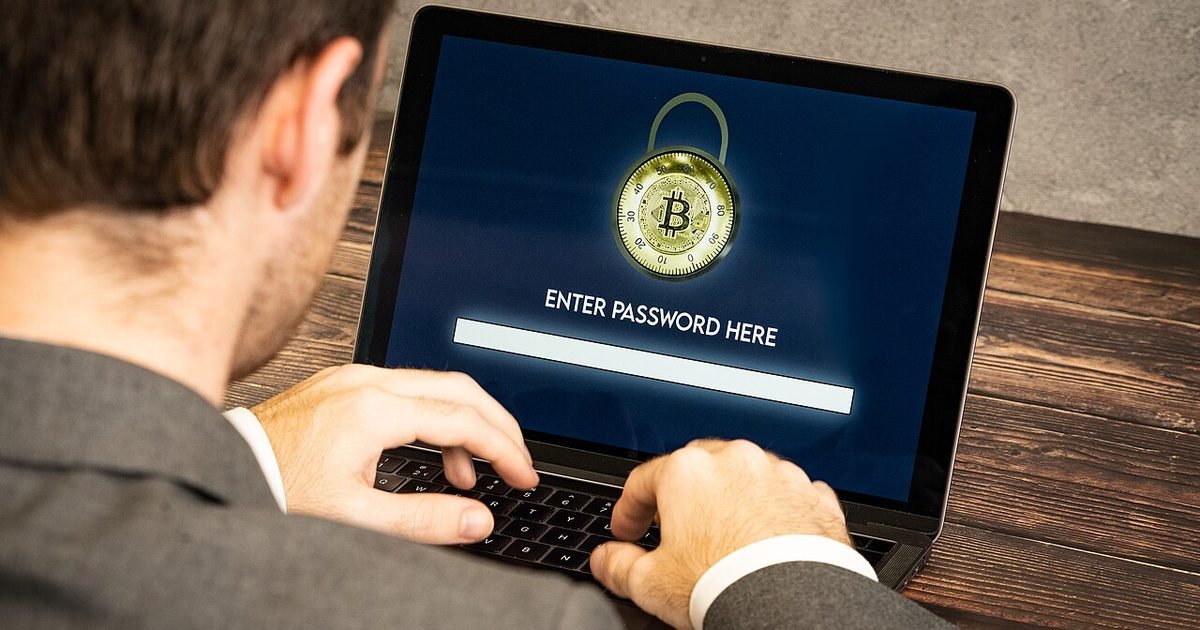
The important idea is simple: the vault should be encrypted before it leaves your device. Your master password is used to derive the key that opens the vault, but the company should not store that password in a form it can read. Many services describe this as zero-knowledge encryption. In plain terms, the provider can sync the locked box between your phone and laptop, but it should not be able to open the box itself. This is why a forgotten master password is a serious problem. If the vendor can casually reset it and reveal everything, the design is weaker than it sounds. If the vendor cannot recover the vault without a recovery key, emergency kit, trusted contact or account recovery process you set up, that is usually a better sign. The trade-off is less convenience when you are locked out.
The trust question: company, code and recovery
Trust is not only about encryption. You are also trusting the company to ship safe apps, respond to security reports, explain incidents clearly and avoid pushing risky features by default. Look for a public security white paper, a clear recovery model, regular third-party audits and a history of direct incident updates. Open-source clients can help because outside researchers can inspect the app, but open source is not a promise that every server-side process is perfect. Closed-source managers can still be strong if they publish credible audits and document how the vault is protected. The recovery process deserves special attention. Some people want a family member to help recover an account. Others prefer a printed emergency kit in a safe place. Either is fine if you understand the risk. What you should avoid is a vague promise that support can “get you back in” with no explanation.
Browser password manager or dedicated app?
Built-in browser managers are much better than they used to be. They can generate strong passwords, sync across devices and warn about known leaked credentials. For someone who only uses one browser and one device ecosystem, that may be enough. A dedicated password manager makes more sense when you use several browsers, share logins with family, need secure notes, want stronger emergency access, or want better control over export and organisation. The biggest weakness of browser-only storage is lock-in. If your passwords live inside one browser account, changing platforms can feel messy. A dedicated manager is also cleaner for work and personal separation. The answer does not have to be purist. Using the browser manager is far safer than writing passwords in a notes app. Moving to a dedicated vault is about portability, sharing rules and deeper security checks.
What to check before you choose one
Start with five checks. First, can you export your vault in a standard format if you leave? Second, does it support two-factor authentication for the vault itself, preferably an authenticator app or hardware security key? Third, does it warn about reused, weak and exposed passwords? Fourth, does it explain account recovery in language a normal person can understand? Fifth, does it have apps for every device you truly use, not just the device you wish you used? Families should also check sharing. A shared Netflix login is low risk; a shared tax, domain, hosting or banking login is not. Business users should check admin controls, member offboarding and access logs. If a service hides these basics behind vague marketing language, keep looking. You are choosing an everyday safety tool, not a sticker for feeling secure.
What happens if the company is breached
This is the scary scenario, and it deserves a calm answer. If a password manager provider is breached, the outcome depends on what was taken and how the vaults were protected. If attackers only get encrypted vault data, strong encryption and a strong master password make bulk abuse much harder. If your master password is weak or reused, the risk rises. If attackers get metadata, billing data or support records, that may still expose sensitive clues even if the vault contents stay locked. Your response should be practical: change the master password from a clean device, make sure two-factor authentication is on, rotate the most important account passwords, and watch for targeted phishing that references the breach. Do not panic-rotate hundreds of passwords blindly if you cannot track the changes. Start with email, banking, cloud storage, domain registrar, phone carrier and any account that can reset other accounts.
The master password is the one password you must get right
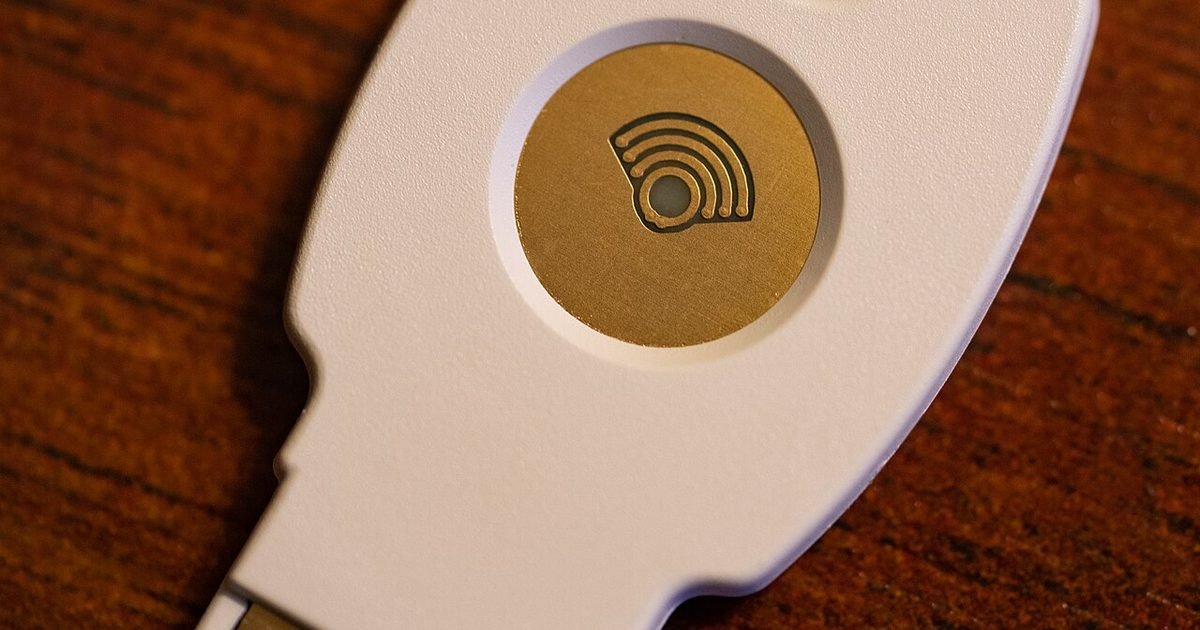
Your master password should be long, unique and memorable enough that you will not write it in an unsafe place. A passphrase made from several unrelated words is usually easier to type and remember than a short jumble of symbols. Do not reuse a phrase from email, Wi-Fi, a device PIN or an old account. Do not store the master password inside the same vault it opens. If you must keep a backup, write it on paper and store it somewhere boring and physical, such as a safe or a sealed envelope with other important documents. Then add two-factor authentication. An authenticator app is a good start; a hardware security key is stronger for people who manage sensitive accounts. Recovery codes should be printed or stored offline. If the only copy of your recovery code is inside the locked vault, it will not help when you need it.
Moving from reused passwords without making a mess
The best migration is not a weekend project where you change every login at once. Start by importing from your browser or old manager, then clean the vault in priority order. First secure email, because email resets everything else. Then secure financial accounts, cloud storage, password recovery accounts, domain and hosting accounts, phone carrier, social media and shopping accounts with saved cards. After that, work through the rest over time. For each important account, generate a new unique password, turn on two-factor authentication, update recovery email and phone details, and save backup codes. Keep a temporary checklist, but do not paste passwords into it. Expect duplicates, dead accounts and old logins you no longer need. Deleting stale entries is part of the job. A smaller accurate vault is safer than a huge messy vault you never trust.
Sharing, families and emergency access
Password sharing is where many people undo the benefit of a manager. Do not send passwords through chat or email after moving to a vault. Use the manager’s sharing feature so access can be changed or removed later. For families, create shared folders for low-risk accounts and keep personal email, banking, health and work logins separate. Emergency access is useful, but set it deliberately. A trusted person might receive access after a waiting period, giving you time to deny a request if it is wrong. Couples and families should also decide what happens if someone loses a device, changes phone numbers or dies. That sounds uncomfortable, but it is less painful than trying to reconstruct a digital life from a locked phone. The goal is not secrecy for its own sake. The goal is controlled access with a clear escape route.
Red flags that should make you pause
Be wary of any manager that cannot clearly explain its encryption, has no export option, pushes SMS-only two-factor authentication, hides its pricing until after setup, or treats support recovery as a black box. Also be careful with unknown browser extensions that promise to manage passwords but have little company history. The extension has access to one of the most sensitive parts of your browsing life, so install only from a provider you have chosen on purpose. Reviews can help, but do not rely on star ratings alone. Read recent complaints about sync failures, lockouts and support response. A password manager does not need to be flashy. It needs to be boring, documented and consistent. If the app nags, confuses you, or makes simple tasks feel risky, you are less likely to use it correctly.
How to use one safely day to day
Once the vault is set up, the routine should be simple. Let the manager create new passwords instead of inventing them yourself. Watch the domain before approving autofill, especially after clicking links in email or messages. Lock the vault when you are away from a shared computer. Keep the app and browser extension updated. Review the security dashboard monthly until the worst reused passwords are gone, then check it every few months. Be careful with biometric unlock. Fingerprint or face unlock is convenient, but it should unlock a device-protected vault, not replace your master password forever. If you travel, consider which devices contain the vault and whether you need offline access. The safest setup is the one you will actually keep using, but convenience should not quietly remove every second check.
Pros and cons
What works well
- Creates unique passwords for every account without making you memorise them
- Reduces damage from old site breaches because reused passwords disappear
- Can warn about weak, reused or exposed logins
- Makes family and team sharing safer than chat or email
- Works across devices when you choose a manager with good sync and export
What to watch out for
- A weak master password or lost recovery setup can create a serious lockout problem
- You must trust the provider’s app security, sync service and incident response
- Migration takes time if you have years of messy saved logins
- Some advanced family or business features sit behind paid plans
- Bad browser extensions or unclear recovery policies can weaken the whole setup
Verdict: best for, and who should skip it
A password manager is best for anyone with more than a handful of online accounts, especially if they reuse passwords today. Skip the complicated setup at first if it will stop you starting; use a reputable manager, secure email first, and improve the vault over time. The main trade-off is simple: you concentrate risk in one vault, then protect that vault much better than scattered passwords ever were.
Questions
Is it safer to let my browser save passwords?
Browser password saving is usually safer than reusing passwords or keeping them in a notes app. A dedicated password manager is better when you need cross-browser support, family sharing, secure notes, export control and stronger security reporting.
What if I forget the master password?
That depends on the recovery model. Some managers offer an emergency kit, recovery key, trusted contact or family recovery flow. Set this up before you need it, then store recovery codes offline. Do not assume support can unlock the vault for you.
Should I use a free password manager?
A free plan can be fine if it includes strong encryption, export, device support and two-factor authentication. Check the limits before you move everything. If sharing, emergency access or business controls matter, a paid plan may be worth it.
Do passkeys replace password managers?
Passkeys reduce the need for typed passwords on supported sites, but they do not cover every account yet. Many password managers now store or help manage passkeys, so the vault can remain your central place for sign-ins and recovery details.
Next step: If you are improving account security this week, start with your email account and then read the Nexgadgets privacy guides at Privacy for the settings that protect the accounts around it.
Nexgadgets provides general information, not professional advice. Always do your own research.