Phone privacy screen settings are easy to misunderstand because the phrase mixes two different problems: what your phone shows on the display, and who can see it from the side. The useful setup is not one magic switch. It is a short privacy pass that tightens lock-screen previews, app permissions, display behaviour and, where needed, a physical privacy protector without making the phone painful to use.
Start with what you are trying to hide
Before changing settings, separate three risks. First, lock-screen leaks: a message preview, delivery code or calendar alert can appear while the phone is on a desk. Second, shoulder-surfing: someone nearby can read your screen while you type, commute or pay for something. Third, app exposure: a social, banking or work app may keep sensitive information visible in the app switcher or through notifications. Android and iPhone handle these risks in different menus, and Samsung adds a few One UI labels of its own, but the order is the same. Hide previews first, reduce app permissions next, then decide whether the screen itself needs a viewing-angle filter. Nexgadgets treats privacy settings as a daily-use problem, not a contest to turn off every feature. A good setup should hide the risky bits while leaving calls, maps, payments and family messages usable.
Lock-screen notifications are the biggest quick win
Most people get more privacy from notification changes than from a screen protector. On Android, open Settings, Notifications, then look for lock-screen notification controls. The exact label changes by phone, but the safe starting point is to show notifications without sensitive content, or to hide content until the phone is unlocked. Samsung Galaxy phones often expose this under Lock screen or Notifications, with per-app choices for whether content appears. On iPhone, check Settings, Notifications, Show Previews and choose When Unlocked if you still want alerts without readable content. This stops casual leaks such as one-time codes, medical appointment reminders, bank alerts and private messages. Keep critical alerts visible if you rely on them, but strip previews from messaging, email, banking, authenticator and health apps. Test the result by locking the phone, sending yourself a message and checking what a stranger could read from arm’s length.
Use app-level notification controls instead of turning everything off
A common mistake is to disable all notifications, then miss something important and reverse every privacy change a week later. App-level controls are better. Keep the alert, remove the preview, and decide whether the app can appear on the lock screen at all. Messaging apps usually deserve the strictest treatment because names, message snippets and group titles can all reveal context. Delivery apps may be harmless most days, but a delivery address or pickup code can still be sensitive. Work chat, calendar and email need extra care if the phone is visible at school, work, public transport or home. Android lets many apps use notification categories, so you can keep security alerts while silencing promotions. iPhone users can combine Show Previews with per-app Notification settings and Focus modes. The aim is not silence. It is controlled interruption, where the phone can get your attention without broadcasting the private part.
Tighten app permissions that make screen privacy harder
Screen privacy is not only about pixels. If an app has too much access, it can surface personal context in notifications, widgets, suggestions and share sheets. Review Location, Camera, Microphone, Contacts, Photos and Nearby devices. Google’s Android permission manager lets you check permissions by type, and Apple offers a similar Privacy and Security area. Start with Location. Choose While using the app for maps and rideshare apps, and avoid Always unless there is a clear reason. For Photos, prefer selected-photo access when the platform supports it. For Contacts, ask whether the app truly needs your full address book. These changes reduce the chance that sensitive context appears later as a prompt or suggestion. They also help with the broader privacy setup that Nexgadgets covers in its privacy guides. Recheck permissions after major app updates because prompts can reappear when new features launch.
Know the difference between software privacy and a physical privacy screen
A phone privacy screen protector is a piece of glass or film that narrows the viewing angle, usually so the display looks darker from the side. Software settings cannot fully copy that. They can hide previews, dim the display, lock faster and keep apps from revealing too much, but they cannot stop someone beside you from reading a bright open chat if the phone is angled toward them. A physical filter helps most in trains, planes, classrooms, offices and queues. The trade-off is real: the screen may look dimmer, photos can be harder to judge, fingerprint sensors may be pickier, and friends sitting beside you may struggle to see a shared map or ticket. If your worry is mainly lock-screen message leaks, settings are enough. If your worry is side viewing in crowded places, a protector may be worth the inconvenience.
Samsung privacy display features are promising, but check your model
Samsung has shown newer privacy-display ideas that can limit viewing angles through the screen itself, but availability depends on the phone model, software version and region. Do not assume every Galaxy phone has the same switch. On current everyday phones, you are more likely to find practical controls for Lock screen notifications, Secure Folder, app permissions, screen timeout, Extra dim and visibility settings. Secure Folder is useful when you need to keep a work app, private gallery or second chat account away from casual browsing. It is not a magic vault if your unlock method is weak, but it does add a separate boundary. If your phone includes a privacy display or similar viewing-angle control, test it in the place you care about. Sit beside the phone, open a message with harmless sample text and check whether the side view is truly reduced.
Adjust brightness, timeout and app switcher habits
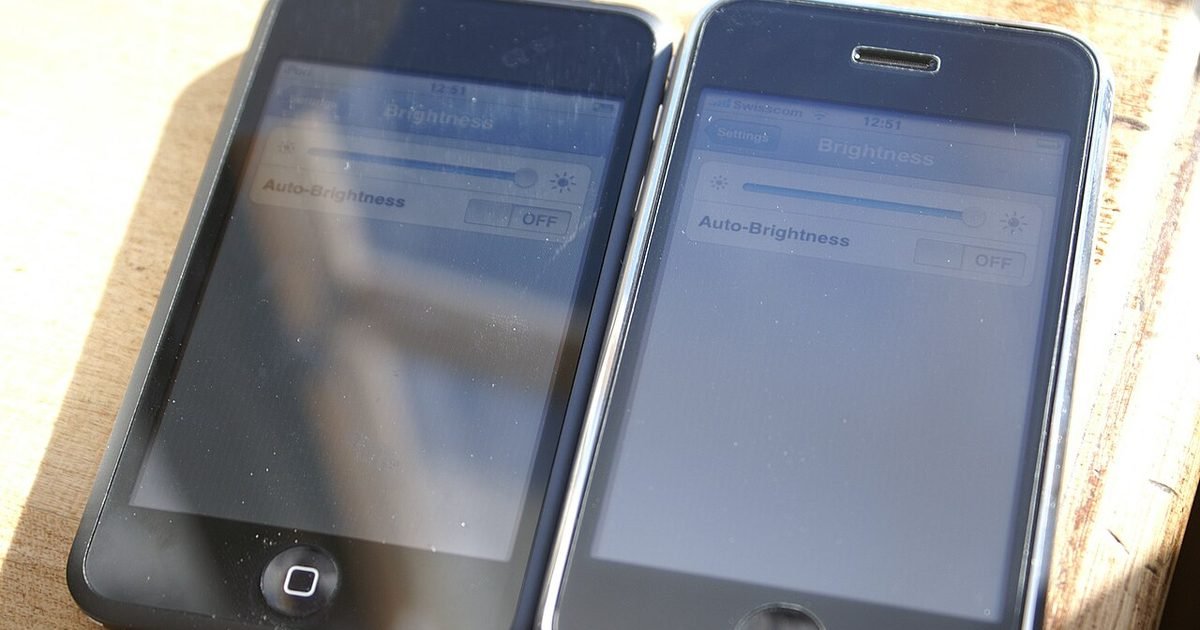
Small display habits matter. A very bright screen is easier to read from the side, especially at night or on public transport. Auto-brightness usually helps, but if your phone stays too bright indoors, lower it manually or use Extra dim where available. Shorten the screen timeout so a tabled phone does not sit unlocked while you talk to someone. Use the power button before putting the phone down. Clear sensitive apps from the app switcher when you finish with banking, health, documents or private photos. Some apps blur their preview in the switcher, but many do not. Face unlock can also surprise you by opening the phone while it is still angled toward other people, so check whether your unlock settings require attention or eye contact. None of these steps is dramatic, but together they close the everyday gaps that people notice only after an awkward moment.
Set up private modes for work, travel and shared spaces
Privacy settings should change with context. At home, you may want family calendar alerts and delivery notifications to stay visible. At work, you may want personal messages hidden and social apps quiet. When travelling, codes, bookings, wallet alerts and maps become more sensitive because you are surrounded by strangers and using the phone constantly. Focus modes, Do Not Disturb schedules and work profiles can make these changes automatic. Create one profile for meetings or school, one for travel, and one for sleep. Keep emergency contacts and important calls allowed, but hide or delay noisy apps. If you lend your phone to a child or friend, use app pinning, Guided Access or a guest profile where your platform supports it. The practical test is simple: can someone use the one thing you handed them the phone for without seeing the rest of your life?
Common mistakes that make privacy worse
The first mistake is buying a privacy protector and ignoring notifications. The protector may hide a side view, but it does nothing for a lock-screen message that appears while the phone faces upward. The second mistake is turning on every strict option at once. That often breaks convenience, then the whole setup gets abandoned. The third mistake is trusting incognito or private browsing to hide phone activity from apps, notifications or people beside you. It mainly affects browser history on that device. The fourth mistake is letting widgets show too much. Calendar, weather, delivery, email and fitness widgets can all reveal habits or locations. The fifth mistake is weak unlocking. If your PIN is easy to guess, privacy settings only slow someone down. Use a stronger PIN, fingerprint or face unlock with attention checks, and make sure the phone locks quickly after sleep.
A simple setup checklist for most people
Use this order if you want a clean setup in 15 minutes. Set lock-screen previews to hidden or visible only when unlocked. Tighten notification settings for messages, email, banking, health and work apps. Review Location, Photos, Contacts, Camera and Microphone permissions. Shorten screen timeout and lower brightness in public spaces. Remove sensitive widgets from the lock screen or home screen. Create a Focus, Work mode or Do Not Disturb profile for shared spaces. Test with a locked phone and a harmless message. Then decide whether a physical privacy screen makes sense for your commute, job or school. If it hurts display quality too much, skip it and keep the software setup. If you often read private material in crowded places, accept the trade-off. Privacy that you can live with every day beats a strict setup you disable after three days.
Pros and cons
What works well
- Hides sensitive notification previews without blocking every alert.
- Works on most recent Android phones, Samsung Galaxy phones and iPhones with only menu-name differences.
- Lets you choose a physical privacy protector only if side viewing is a real problem.
- Improves privacy in public places without forcing you to stop using maps, payments or messaging.
What to watch out for
- Menu names vary by brand and software version, so you may need to search Settings for the exact label.
- A physical privacy screen can make the display dimmer and less pleasant for photos or shared viewing.
- Strict notification and permission changes can become annoying if you apply them to every app at once.
- Software settings cannot fully stop someone from reading an already-unlocked screen beside you.
Verdict: best for, and who should skip it
Phone privacy screen settings are best for people who want fewer public leaks without turning their phone into a locked-down project. Skip the physical privacy protector if your main issue is notification previews, because settings solve that more cleanly. Consider the protector if you often use private apps in crowded places. The main trade-off is convenience versus exposure, so start with software and add hardware only when the side-view problem is real.
Questions
Do phone privacy screen settings stop people beside me from reading my screen?
Not completely. Settings can hide lock-screen previews, reduce brightness and limit what apps reveal, but they cannot fully block a side view of an unlocked screen. For that, you need different habits or a physical privacy screen protector.
Should I hide all lock-screen notifications?
Usually no. A better setup is to keep useful alerts but hide sensitive content until the phone is unlocked. Apply stricter controls to messages, email, banking, health and work apps first.
Are privacy screen protectors bad for display quality?
They can be. Many make the screen look dimmer from the side and sometimes from straight on. They can also affect fingerprint readers on some phones. Buy one only if side viewing is a real problem for you.
Where are these settings on Samsung Galaxy phones?
Start in Settings, then check Notifications, Lock screen, Security and privacy, Apps and Permissions. Samsung changes labels between One UI versions, so searching Settings for “lock screen notifications”, “permissions” or “Secure Folder” is often faster.
Next step: If you want the broader setup, read Android Privacy Apps: What to Install, What to Skip, and Which Settings Matter More next.
Nexgadgets provides general information, not professional advice. Always do your own research.