Can I check laptop battery health without installing a random utility? Yes: Windows, macOS, and Linux all have built-in ways to show whether your battery is ageing normally, losing capacity, or close to replacement. The useful part is not just finding the report; it is knowing which numbers matter, which ones are harmless, and when a new battery is worth the money.
Start with the three numbers that matter
Battery reports can look more technical than they need to. For a normal buyer or owner, the three numbers to find are design capacity, current full-charge capacity, and cycle count. Design capacity is what the battery was built to hold when new. Full-charge capacity is what it can hold now. Cycle count is a rough measure of how many full charge-and-discharge equivalents the pack has gone through. A laptop that says it charges to 100% can still have a tired battery if that 100% is now a much smaller bucket. That is why a two-hour laptop can honestly show a full battery icon. Before you blame Windows, macOS, Linux, the charger, or a browser tab, compare those numbers. Nexgadgets usually treats battery health as a decision tool, not a scorecard: it tells you whether to change habits, recalibrate expectations, replace the pack, or stop spending time on a machine that has reached the end of its useful mobile life.
Check battery health on Windows with Battery Report
On Windows, the built-in Battery Report is the cleanest place to start. Open Terminal, Command Prompt, or the modern command-line app, then run powercfg /batteryreport. Windows saves an HTML file and prints the path. Open that file in a browser and look for installed batteries, recent usage, battery capacity history, and battery life estimates. Microsoft documents the system power configuration command, so you do not need a third-party app just to get the basics: Microsoft power configuration reference. The important comparison is design capacity versus full charge capacity. If the full charge capacity is far below the design number, the laptop may still run correctly but it will not last long away from the wall. If the report shows sharp drops, blank history, or strange estimates, run it again after a few normal charge cycles before making a purchase decision.
Read the Windows report without overreacting
The Windows Battery Report can tempt people into treating every line as a diagnosis. Do not. Recent usage is a snapshot of how you used the laptop, not a permanent health score. Battery life estimates are based on past behaviour, so a week of video calls, gaming, hotspot use, or a bright screen can make the estimate look worse than the battery itself. Capacity history is more useful because it shows whether the pack has been drifting down over time. A slow decline is normal. A sudden cliff can mean a battery issue, a firmware event, a reporting glitch, or a machine that has been sitting unused for too long. If the laptop is second-hand, save the report as a PDF before buying so you have a record. If it is your own machine, compare a fresh report after two weeks. One report gives you a clue; two reports show a trend.
Check battery health on macOS
On a MacBook, start with System Settings, Battery, then Battery Health where available. Apple also exposes cycle count and condition in System Information. Hold Option, open the Apple menu, choose System Information, then look under Power. Apple explains battery cycle count and service conditions in its Mac battery support pages: Apple battery cycle count guide. The condition label matters because macOS can flag when the battery should be serviced, but the cycle count still gives context. A low cycle count with poor condition may point to age, heat, storage habits, or a faulty pack. A high cycle count with acceptable runtime may not need immediate action. Apple silicon MacBooks often last long enough that owners forget battery ageing is still happening. If you use the laptop docked for months, check the condition before a trip rather than discovering the problem at the airport.
Check battery health on Linux
Linux battery checks vary by desktop, but the common route is still simple. Many distributions show battery health in the power settings panel. For a clearer report, open a terminal and try upower -i /org/freedesktop/UPower/devices/battery_BAT0. Some machines use BAT1 instead. Look for energy-full, energy-full-design, percentage, state, and capacity. The UPower project describes the service that many Linux desktops use for power device information: UPower documentation. If that path does not exist, list devices with upower -e and copy the battery path shown there. On ThinkPads and some other business laptops, firmware and vendor tools may expose extra charge thresholds. Treat those as useful extras, not a replacement for comparing current full capacity with the original design capacity. Linux gives you good raw data, but you still have to interpret it in the context of real runtime.
What cycle count does and does not tell you
Cycle count is useful, but it is not a countdown clock. One cycle is roughly one full battery amount used, whether that happens in one deep discharge or several smaller sessions. A laptop that went from 100% to 50% twice has used about one cycle. Battery makers and laptop brands design packs around expected cycle ranges, but real life changes the outcome. Heat, long periods at full charge, heavy loads, poor storage, and age can all reduce usable capacity. A lower cycle count does not guarantee a healthy battery if the laptop spent years hot and plugged in. A higher cycle count does not mean the laptop is useless if it still holds enough charge for your work. Use cycle count as one piece of evidence beside full-charge capacity, runtime, swelling, shutdowns, and charging behaviour. If the battery is physically swollen, stop using the machine and get service advice rather than running more tests; Dell gives the same swollen-battery guidance for its laptops, and the FAA also treats damaged lithium batteries as a safety issue. Dell swollen battery guidance; FAA lithium battery guidance.
Compare the report with your actual runtime
A report is only helpful if it matches the way you use the laptop. After checking the numbers, run a simple real-world test. Charge to full, unplug, set brightness to your normal level, open the apps you usually use, and note the time when the laptop reaches around 20%. Do not run a stress test unless your real work is heavy. Browsing, documents, video calls, coding, photo work, and gaming all pull very different amounts of power. If the report looks poor but the laptop still covers your commute, class, or meeting block, replacement may not be urgent. If the report looks acceptable but the laptop shuts down at 30%, drops suddenly, or refuses to sleep properly, the number is not telling the whole story. That is when firmware updates, battery calibration steps from the manufacturer, or a service check may be more useful than another battery app.
When a replacement is worth it
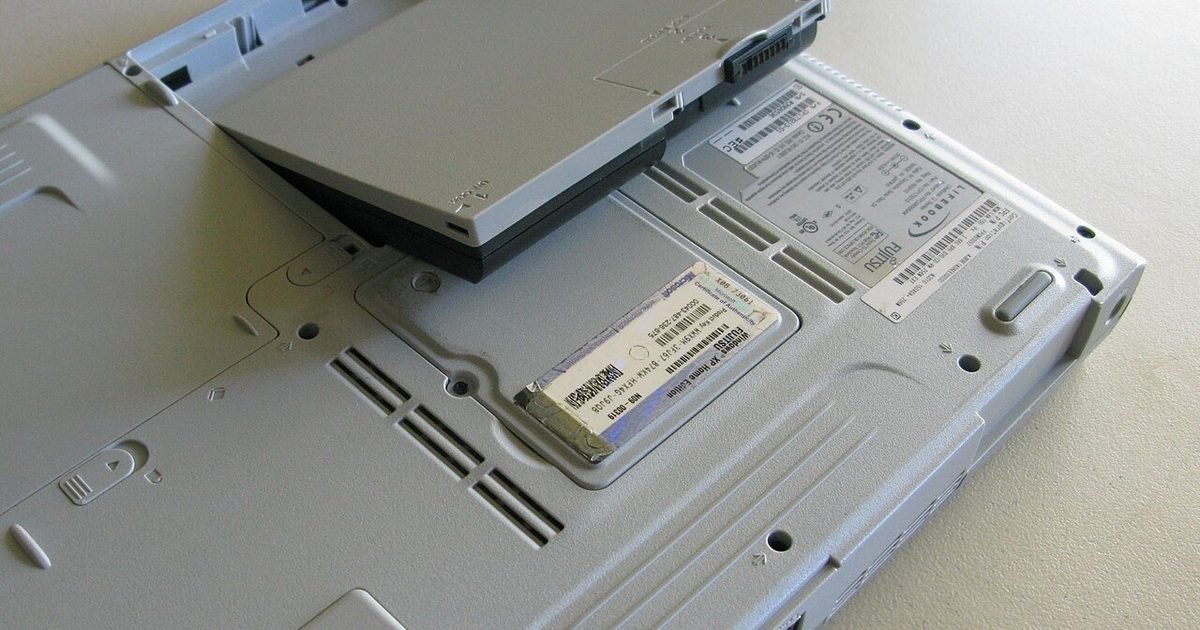
A replacement is worth considering when the laptop still does what you need but no longer lasts long enough unplugged. It is less attractive when the machine is already slow, unsupported, damaged, or expensive to service. Start with the official service price or parts path where possible, then compare it with the cost of a newer used or entry-level laptop. For business laptops with accessible parts, a battery swap can be a sensible refresh. For thin ultrabooks with glued or tightly packed internals, labour can change the maths. Be careful with very cheap aftermarket packs. Some are fine, but unknown cells, poor fit, weak protection circuits, and inflated capacity claims can turn a simple repair into a safety risk, which is why official service guidance and known-good parts matter for lithium-ion batteries. Apple battery performance and service guidance. If you are not comfortable opening the laptop, pay for service. Battery replacement is one of the few upgrades where safe handling matters more than saving a small amount.

Habits that slow battery wear
You cannot stop battery ageing, but you can avoid making it worse. Heat is the big enemy, so keep vents clear, avoid soft bedding, and do not leave a laptop baking in a car. If your laptop has a battery care mode or charge limit, use it when the machine spends most of its life on a desk. Many brands allow a limit around the high-middle of the battery range instead of holding the pack at full charge all day. You do not need to drain modern laptop batteries to zero for routine care. In fact, deep discharges can be harder on the pack. Store a spare or unused laptop partly charged, then check it every few months. Also look at the boring power settings: screen brightness, sleep behaviour, keyboard backlight, browser tabs, and startup apps. These do not repair an old battery, but they can make a healthy one feel much better.
Mistakes to avoid when diagnosing battery problems
The biggest mistake is installing several battery utilities before reading the built-in report. Extra apps can add confusion, startup load, and privacy trade-offs without telling you more than the operating system already knows. The second mistake is trusting the battery percentage as a health measure. A worn battery can still display 100%. The third is replacing the charger before checking whether the charger is the problem. If the laptop charges slowly, test with the correct wattage charger and cable, especially on USB-C machines. The fourth is ignoring physical warning signs. Swelling, a trackpad that lifts, a case that no longer closes flat, chemical smells, or unusual heat need service attention. Finally, do not compare your runtime with a launch-day review unless your workload matches it. Reviews often use controlled settings. Your real mix of calls, tabs, brightness, external devices, and background sync is what matters.
A quick decision checklist
Use this order when you want a fast answer. First, run the operating system battery report and save it. Second, compare full-charge capacity with design capacity. Third, check cycle count and condition if the system shows it. Fourth, do one normal-use runtime test from full charge to around 20%. Fifth, inspect the laptop for swelling, heat, or charging faults. Sixth, price a proper replacement and compare it with the value of the whole machine. If the laptop is reliable, fast enough, and cheap to service, a new battery can extend its life. If it is slow, unsupported, and costly to open, the better move may be putting that money toward a replacement. For more everyday buying and maintenance guides, see the Nexgadgets laptops section.
Pros and cons
What works well
- Built-in tools on Windows, macOS, and Linux give enough information for most owners.
- The method helps separate a tired battery from a charger, settings, or workload problem.
- A saved report is useful when buying, selling, or deciding whether repair is worthwhile.
What to watch out for
- Battery reports can be misread if you treat one estimate as a final diagnosis.
- Some laptops hide details behind vendor tools or firmware-specific menus.
- Replacement value depends heavily on model design, parts quality, and service cost.
Verdict: best for, and who should skip it
Best for anyone deciding whether a laptop battery is still healthy enough for travel, study, meetings, or second-hand buying. Skip the DIY route if the battery is swollen, the case is lifting, or you are not comfortable opening the machine. The main trade-off is simple: the report gives evidence, but your real runtime and repair cost decide the next move.
Questions
Can I check laptop battery health without installing an app?
Yes. Windows has Battery Report, macOS has Battery Health and System Information, and many Linux desktops use UPower or a power settings panel. Start there before adding third-party tools.
Is a high cycle count always bad?
No. A high cycle count means the battery has worked hard, but it may still be useful if full-charge capacity and real runtime are acceptable. Age, heat, and storage habits matter too.
Why does my laptop say 100% but die quickly?
The 100% icon means the battery is full relative to its current capacity, not its original capacity. If the pack has lost capacity, a full charge can still run for a short time.
Should I replace the battery or buy a new laptop?
Replace the battery if the laptop is otherwise fast, supported, and affordable to service. Consider a new machine if the battery repair is costly and the laptop already struggles with your workload.
Next step: Run the built-in report today, save a copy, then compare it with one normal-use runtime test before spending money on parts or a new laptop.
Nexgadgets provides general information, not professional advice. Always do your own research.