Laptop battery replacement sounds simple until you have to decide whether the old machine deserves the spend, which battery is safe, and whether opening the case is a sensible job at home. This guide gives you a practical way to read the symptoms, check the health report, price the decision without guessing, and avoid turning a tired battery into a damaged laptop.
Start with the symptom, not the shopping cart
A weak laptop battery does not always mean the battery is the only problem. Start with the pattern you can see. If the laptop runs normally on the charger but shuts down quickly when unplugged, the battery is the main suspect. If it turns off under heavy load even while plugged in, the charger, USB-C cable, charging port, heat, or main board may be involved. If the battery percentage jumps from forty to five in minutes, the battery gauge may be misreading a pack that has aged unevenly. If the case is bulging, stop using the laptop on battery power and do not press the lid or palm rest flat. Swollen lithium-ion cells need careful handling, not another calibration attempt. Nexgadgets’ rule of thumb is simple: gather evidence before you buy anything. Write down how long the laptop lasts, whether it charges to one hundred percent, whether it gets unusually hot, and whether the problem changes with another known-good charger. Those notes help you decide whether replacement is sensible or whether the laptop needs diagnosis first.

Run the built-in battery report
Windows, macOS, and Linux all give you more useful information than a random battery app. On Windows, open Terminal or Command Prompt and run powercfg /batteryreport, then open the HTML report it saves. Look for design capacity, full charge capacity, recent usage, and cycle count if your hardware reports it. On macOS, open System Settings, Battery, then Battery Health, and use System Information for cycle count and condition details. On many Linux laptops, upower -i /org/freedesktop/UPower/devices/battery_BAT0 shows energy-full, energy-full-design, percentage, and state, although names vary by distribution and model. Treat these numbers as a guide, not a lab test. A pack with much lower full charge capacity than design capacity is aged. A pack with a normal-looking number but sudden shutdowns may still have a weak cell or a firmware reporting issue. The useful question is not whether the number looks neat. It is whether the report matches what you feel in everyday use.
What cycle count actually means
Cycle count is often misunderstood. One cycle is roughly a full battery’s worth of discharge and recharge, but it does not have to happen in one sitting. Using half the battery today and half tomorrow can add up to one cycle. A high cycle count tells you the pack has worked hard, but it does not prove failure by itself. Heat, long periods at high charge, deep discharge, and the quality of the original cells all matter too. A lightly used laptop can still have a poor battery if it spent years plugged in and warm. A heavily used laptop can feel acceptable if the owner mainly works near a power socket. Use cycle count together with full charge capacity and your own runtime needs. If you only need an hour away from the wall, a tired pack may be fine for another year. If you travel, study in libraries, or work in cafés, the same pack can be a daily frustration. Replacement is about usable time, not a trophy number.
Decide whether replacement is worth it
The decision comes down to the laptop’s remaining value, performance, repair difficulty, and your tolerance for risk. Replacement usually makes sense when the laptop still feels fast enough, receives security updates, has no other expensive faults, and the battery is clearly the part holding it back. It is harder to justify when the keyboard is failing, the screen is damaged, storage is nearly full, hinges are loose, or the laptop is already too slow for your work. Avoid chasing a perfect battery in a machine you wanted to replace anyway. Also think about downtime. A student or remote worker may value a same-day professional job more than saving a little with a battery that takes weeks to arrive. A spare-room laptop used mostly on a desk can wait. If you are comparing repair against replacement, include the charger, tools, adhesive strips, and possible service labour. The cheapest listed battery is not always the cheapest finished job.
Choose a safe replacement battery
Buy by exact model, part number, and connector, not by a vague listing title. Many laptops have several battery variants across the same family name, and the wrong shape or cable can look almost right until the case will not close. Check the label on the existing battery if you can access it safely, then compare voltage, capacity, screw holes, cable position, and connector style. Prefer the laptop maker’s official part where it is available and reasonably priced. If you choose a third-party pack, buy from a seller with clear warranty terms, real return handling, and a listing that names compatible part numbers. Be wary of miracle capacity claims in the same physical size, especially from sellers that hide the manufacturer. Lithium-ion packs are not the place for mystery bargains. A poor pack may work for a while, but it can also age quickly, report charge badly, or create heat and swelling problems. Safe buying is less exciting than bargain hunting, but it is the part that protects the laptop.
Know when DIY is reasonable
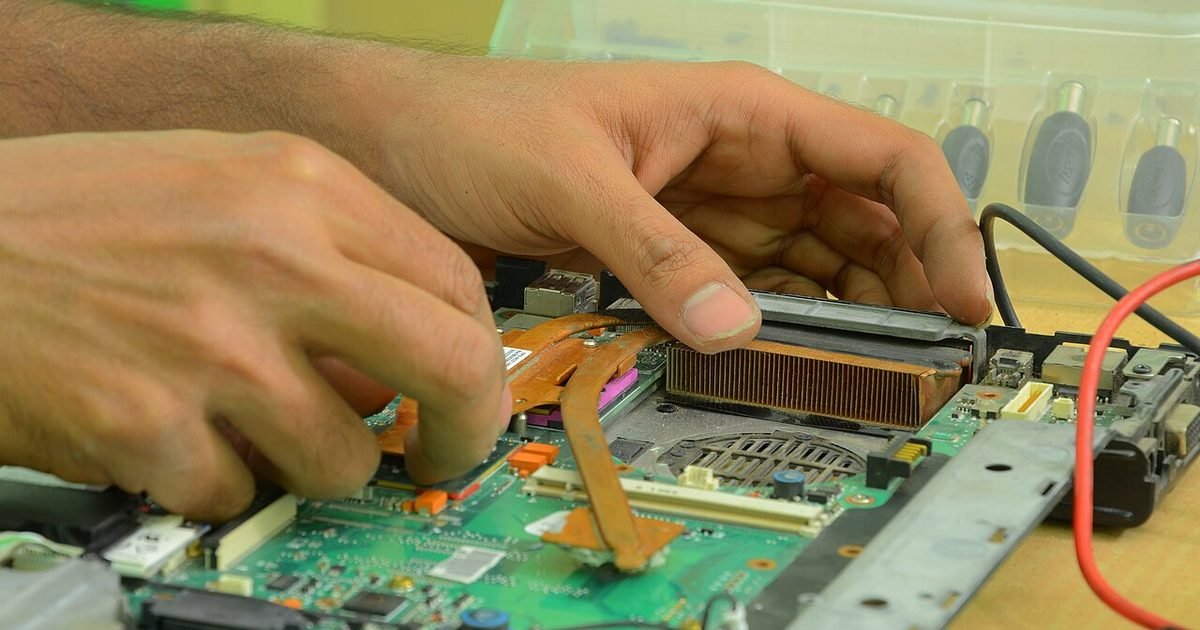
A home replacement is reasonable when the service manual is clear, the battery is screwed in rather than glued heavily, you have the right driver bits, and you are comfortable disconnecting a fragile battery cable. Work on a clean table, power the laptop down fully, unplug it, and keep screws organised by location. Do not use metal tools to pry near a battery pack. Do not bend, puncture, or compress the cells. If adhesive resists, slow down rather than forcing it. DIY becomes a bad idea when the battery is swollen, the laptop uses strong adhesive, the case has hidden clips you cannot identify, or opening the machine could void a warranty you still care about. Thin premium laptops can be less forgiving than older business models. Before starting, watch a repair video for your exact model, not just the same brand. If the process begins with removing the motherboard or screen assembly, that is a sign to consider a professional repair.
What a repair shop should tell you
A good repair shop should be willing to name the battery type, explain whether the part is official or third-party, give a warranty period, and say what happens if the replacement does not fix the issue. They should also inspect the charger and charging port before assuming the battery is the whole story. Ask whether they will recycle the old pack safely. Ask whether your data needs to leave the device and whether the laptop will be powered on after repair for testing. You do not need a dramatic sales pitch. You need a clear part, a clear price, and a clear test. If a shop refuses to discuss the source of the battery or offers only a cash price with no paperwork, pause. For business laptops, also check whether the manufacturer offers a fixed battery service. It can cost more, but it may protect warranty history and firmware compatibility. The right shop reduces risk rather than merely opening the case for you.
After the replacement, test before you celebrate
A new battery should be tested while the return window is open. Charge it fully, use the laptop normally until it reaches a low level, then charge it again. Watch for sudden percentage drops, unusual heat, charging pauses, or a case that no longer sits flat. Open the operating system’s battery report again and confirm the full charge capacity looks plausible for the pack you installed. Do not obsess over a perfect first reading. Some packs and firmware need a few cycles before reporting settles. What matters is stable behaviour and a meaningful improvement in runtime. Keep the old charger in the test too. A weak charger can make a healthy battery look faulty because the laptop cannot charge reliably under load. If the laptop now lasts much longer and charges predictably, the job has achieved its purpose. If the same shutdowns continue, the original diagnosis was incomplete and you should stop throwing parts at it.
Make the new battery last longer
You cannot stop lithium-ion ageing, but you can avoid the habits that make it worse. Heat is the biggest everyday enemy, so keep vents clear, avoid soft bedding, and do not charge under a pile of papers or inside a sleeve. If your laptop has a battery charge limit or conservation mode, use it when the machine lives on a desk most of the week. Keeping a battery below full charge during long plugged-in stretches can reduce stress. You do not need to drain the pack to zero as a routine. That old habit came from older battery chemistry and is not helpful for modern laptops. Store a spare or unused laptop partly charged in a cool, dry place, then check it occasionally. Also update firmware from the laptop maker when it addresses power or charging behaviour. The goal is not perfect battery hygiene. It is fewer heat-heavy days, fewer deep discharges, and fewer months sitting at full charge without a reason.
Common mistakes that turn cheap into expensive
The common mistakes are predictable. People buy by laptop name instead of part number. They force a swollen pack out of the case. They mix up screw lengths and damage the keyboard deck. They pry with metal tools near live connectors. They ignore a charger fault, replace the battery, then blame the new pack when charging still fails. They also keep using a laptop with a bulging palm rest because it still turns on. None of these mistakes are worth it. If you feel stuck halfway through a repair, stop, take photos, and get help before something tears. If the battery smells sweet or chemical, gets hot while unplugged, or changes shape, move the laptop away from flammable material and seek proper disposal advice. A battery replacement can be a smart, modest repair. It stops being smart when the job risks the screen, board, data, or your safety.
Pros and cons
What works well
- Often restores useful portable runtime without replacing a laptop that still performs well.
- Can be cheaper and less wasteful than buying a new machine when the rest of the laptop is healthy.
- Built-in battery reports make the first diagnosis easier than many people expect.
- Professional repair can reduce risk on thin laptops or swollen packs.
What to watch out for
- The wrong battery variant can fit poorly or fail to charge correctly.
- Cheap unknown packs may age quickly or create safety problems.
- DIY repair can damage clips, cables, screws, or the main board if the design is difficult.
- Replacement may not fix shutdowns caused by chargers, ports, heat, firmware, or board faults.
Verdict: best for, and who should skip it
A laptop battery replacement is best for a machine that still feels fast, still gets security updates, and only fails the unplugged-runtime test. Skip it, or at least get a repair quote first, if the laptop has several other faults, a swollen battery, heavy adhesive, or performance you already dislike. The trade-off is simple: replacement can extend a good laptop’s life, but only when the diagnosis and part choice are careful.
Questions
Is it safe to replace a laptop battery yourself?
It can be safe on models with a simple screwed-in battery and a clear guide. It is not a good first repair if the pack is swollen, glued down, hidden under several fragile parts, or still covered by a warranty you want to keep.
Should I use an official battery or a third-party one?
Use the official part when it is available at a sensible price. A third-party pack can be acceptable if the seller lists exact part numbers, offers a real warranty, and has a return process, but avoid vague listings and unrealistic capacity claims.
Will a new battery make my laptop faster?
Usually no. A new battery improves unplugged runtime and may stop sudden shutdowns. It will not fix low RAM, a slow drive, overheating, old software, or a processor that no longer suits your work.
What should I do with the old battery?
Do not put lithium-ion batteries in household rubbish. Use a proper electronics or battery recycling point, or ask the repair shop to handle it. Tape exposed connectors if the recycler asks you to do so.
Next step: If you are still diagnosing the problem, read our laptop battery health guide next: How to check your laptop battery health. This guide is general gadget advice, not a repair manual for every model. If a battery is swollen or hot, stop using the laptop and get qualified help.
Nexgadgets provides general information, not professional advice. Always do your own research.