
Your earbuds played music on your phone this morning. Now your laptop will not list them, and the pairing screen sits there saying nothing. The earbuds are almost certainly fine. What changed is which device owns them, and a Bluetooth link takes both sides: the host decides which devices it will connect to, while the earbuds decide whether they are advertising themselves at all. This guide gives the exact path for a Windows laptop and a Mac, the same again for Android and iPhone, and an order of operations for the cases where the list stays empty.
Johann is the Nexgadgets editorial pen name. This guide was compiled from the Microsoft, Google and Apple support pages linked throughout, and is not based on hands-on testing of any specific earbuds.
Why the earbuds are rarely the problem
Every Bluetooth pairing is a two-sided handshake. The host keeps a record that the accessory exists, and the accessory keeps a record that the host is allowed. Both guides that matter start from the accessory side, because that is the end you have to wake up yourself. Apple’s instructions for iPhone begin: “Put your Bluetooth accessory in discovery mode. If you aren’t sure how to make it discoverable, check the instructions that came with your accessory.” Microsoft’s Windows guide says the same with one more step: turn the device on, make it discoverable, and check the maker’s documentation to learn how, because “the way to make the Bluetooth device discoverable depends on the device”.
Neither instruction is about the laptop finding a fault. So if the earbuds worked yesterday, the fault is unlikely to be the hardware: they may be asleep, still held by the other device, not advertising, or out of charge.
Paired and connected are two different states
These two words get used interchangeably, and the confusion is what makes people pair the same device five times in a row. Pairing is the saved record. Connecting is the live audio link. Google’s Android help puts it plainly: “Your devices stay paired until you unpair them.” Microsoft describes the same persistence: once Bluetooth is on, “the Bluetooth device and the Windows device automatically connect anytime the two devices are in range of each other”.
That has one practical consequence. If the pair is already known to your laptop, pairing it again achieves nothing. The other host has to let go first. Turn Bluetooth off on the phone, or disconnect the earbuds in the phone’s list, before you start on the laptop. A pair that connects to the wrong device is not misbehaving. The mechanism is on the Microsoft page: with Bluetooth on, the pair reconnects automatically whenever the two devices are in range, so a phone left on and in range takes the earbuds back as soon as they are free.
The menu wording matters here too. Disconnecting pauses the link and keeps the record, so the pair reconnects when you come back. Forgetting deletes the record, and the next connection needs pairing mode again. Use disconnect for a normal day of moving between laptop and phone; reserve forget for a record that has stopped working.
Put the earbuds into pairing mode first
Pairing mode is the state where the earbuds stop holding their old link and start advertising to anything nearby. It is also the part the laptop cannot do for you, which is why both Apple and Microsoft point at the maker’s instructions instead of describing it. What it looks like varies by model: a button held until an indicator flashes, a case opened with the buds inside, a long press on both earbuds, or a prompt in the maker’s companion app.
Use the support page for the exact model rather than a generic video, because two pairs from the same brand can use different gestures. The model number is printed inside the case or under the lid, and it is the thing to search for.
Pairing to a Windows laptop
Microsoft documents two ways to get Bluetooth switched on in Windows 11: the Settings app, or the quick-settings tile. In Settings: select Start, then Settings, then Bluetooth and devices, and check that Bluetooth is switched on beside the Bluetooth heading. From quick settings: select the network, sound or battery icon next to the time and date, then the Bluetooth tile. If the tile is missing, Microsoft notes the Bluetooth action may need to be added to quick settings first.
To pair, put the earbuds in pairing mode, open that same Bluetooth area, select the Manage Bluetooth devices chevron on the quick setting, then pick the earbuds under New devices. You may need to scroll through the devices you already own for New devices to become available. Follow any extra prompt, then select Done. The same page documents Swift Pair: if a notification offers to connect a supported pair that is in pairing mode nearby, accept it and the work is done. Microsoft’s own tip is worth remembering: if the device is not displayed at all, the Bluetooth devices discovery setting may need to be set to Advanced.
What to check if Windows still cannot see them
Work through these in order, because each one removes a different cause. Confirm the earbuds are in pairing mode and not merely switched on, since a pair connected elsewhere is on but not advertising. Check the laptop really has Bluetooth: Microsoft notes most Windows devices have it built in, and that a USB Bluetooth adapter plugged into a USB port adds it where it is missing. Open quick settings and read the tile. If it says Off, nothing below it will work.
Then deal with the audio itself. If the earbuds connect and you hear nothing, the sound may still be going to the laptop speakers, so set the output device explicitly instead of assuming it moved. If the pair connects and then drops, work through the dropout causes below. Finally, delete the stale entry for that pair and start again from pairing mode. A record that has gone bad looks exactly like hardware failure, and it is cheaper to rule out.
If the pair connects and then drops
Discovery is half the problem; a link that will not stay up is the other half. Microsoft’s drop page names the usual causes: “often caused by power-saving settings, outdated drivers, or temporary system glitches.” Work through them in that order. Turn off battery saver, which the page lists first. Then open Device Manager, expand Bluetooth, right-click the adapter and open the Power Management tab, where Microsoft says to uncheck the option that lets the computer turn the device off to save power. Update the adapter driver, because Microsoft calls an outdated or incompatible driver one of the most common causes of Bluetooth connection problems. Last, range and interference: keep the earbuds close, and move the laptop away from USB 3 devices and hubs, since Microsoft notes unshielded USB devices can sometimes interfere.
Pairing to a Mac
Apple’s Mac help is short. Choose the Apple menu, then System Settings, then click Bluetooth in the sidebar, scrolling down if you do not see it. Apple also notes you can connect a device by clicking the Control Centre item in the menu bar and selecting the device there.
Put the earbuds in pairing mode before you open the panel, or the list stays empty and you conclude, wrongly, that the Mac cannot see them. If the pair is already listed, select it and choose Connect rather than pairing again: the saved record is still there.
Pairing to an Android phone
Google’s steps for Android start at the shade. Swipe down from the top of the screen, touch and hold the Bluetooth tile, then tap Pair new device. If there is no Pair new device entry, check under Available devices, or tap More and then Refresh. Tap the name of the earbuds when they appear and follow the on-screen instructions.
Two caveats come straight from that page. Some of these steps work only on Android 15 and up, and some only on devices with supporting hardware, so a manufacturer’s own settings app can lay the same options out differently. If a pairing notification appears instead of a list, that is Fast Pair running automatically, and it is designed to skip the manual step. Accept it and move on to checking that the audio actually follows.
Pairing to an iPhone or iPad
Apple’s iPhone instructions are the shortest of the four. Put the accessory in discovery mode, go to Settings and then Bluetooth, and make sure Bluetooth is turned on. When the earbuds appear below the devices list, tap the name. If the devices list is not visible, Apple’s own note is that Bluetooth may not be on, so check the toggle at the top of that screen first.
Once paired, the earbuds connect whenever they are in range and nothing else has claimed them. That last clause is the one that catches people who also own a laptop. If the phone keeps winning, there are two moves: disconnect the pair in the laptop’s Bluetooth list, or switch the phone’s Bluetooth off while you test. Either way, reconnect on the laptop before you switch the phone back on.
When the host has no Bluetooth audio at all
Not every screen you own can send sound over Bluetooth. Before you suspect the earbuds, open the audio output menu on the television or console and look for a Bluetooth audio option. If there is none, the set cannot do it and no setting on the earbuds will add the capability. The realistic fixes are a Bluetooth transmitter wired into the set’s headphone or optical output, or a pair of wired headphones.
Check that menu before you buy a transmitter. If the set has no Bluetooth audio option, a transmitter wired into its headphone or optical output is the only route short of a cable.
Wired earbuds and a laptop with no jack
Plenty of current laptops no longer have a 3.5 mm headphone socket, which turns a working pair of wired earbuds into an apparently broken one. The plug in the photo is a standard four-pole 3.5 mm connector, the kind that carries stereo audio and a microphone down one cable. If your laptop has no socket for it, the answer is a small adapter: USB-C to 3.5 mm on a modern laptop, USB-A to 3.5 mm on an older one.
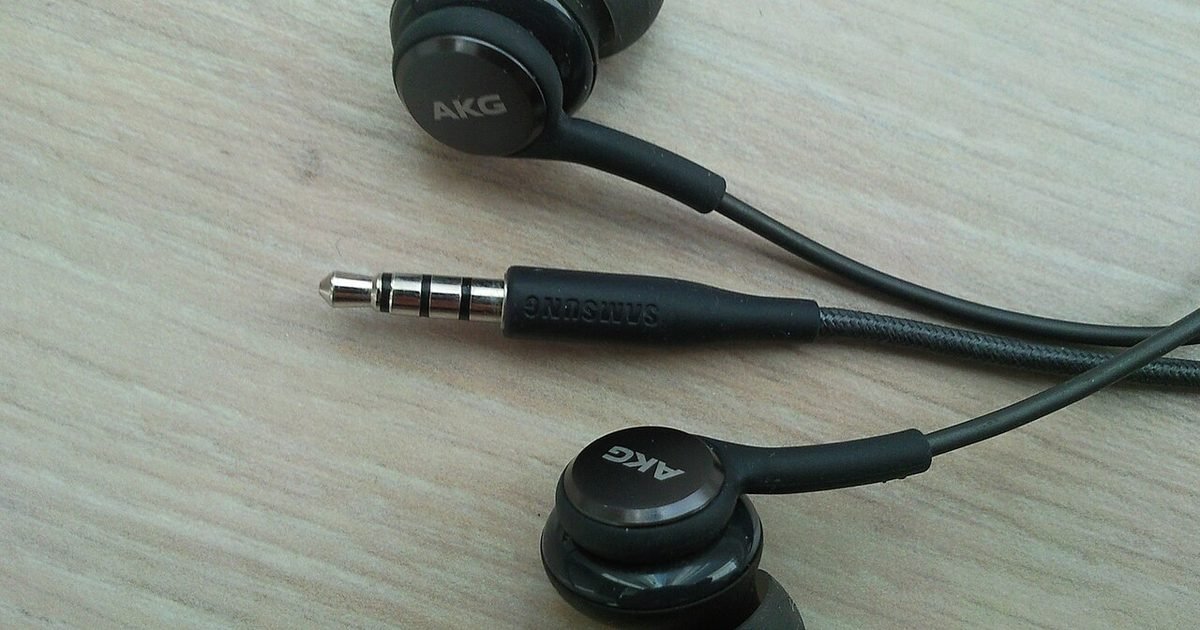
Buy an adapter described as an audio adapter rather than a charging dongle. The two look identical and only one carries sound. On a phone, check that the port supports analogue audio before buying, because some models need an adapter with a built-in converter rather than a straight-through plug.
Multipoint, and how to tell whether yours has it
Multipoint is the feature that lets one pair stay linked to two hosts at once, so a call on the phone interrupts music on the laptop without any re-pairing. It is a capability the maker either states or does not. It cannot be inferred from the price or from how the case looks.
To check, find the maker’s specification page or support article for your exact model and look for the words multipoint, or connect to two devices. If that page does not use them, plan for one host at a time. Even where multipoint is supported, the second device usually has to be connected deliberately the first time. If you want to know which codec you are getting once the pair is connected, our guide to Bluetooth audio codecs explains what actually changes.
An order of operations that fixes most cases
Run this in order and stop as soon as audio works. One: put the earbuds in pairing mode using the gesture for that model. Two: switch Bluetooth off on every other device that has ever paired with them. Three: on the laptop, confirm Bluetooth is on and that the discovery setting is not hiding the list. Four: pair, then set the audio output to the earbuds rather than trusting it to move. Five: play something with a known sound, because a silent test tells you nothing about whether the link is carrying audio. Six: if the pair drops within a minute, work through the dropout causes above rather than replacing anything.
Who this works for, and when to stop trying
This approach suits anyone with one laptop, one phone and earbuds that already work somewhere. It will not rescue three situations. If the device you want to listen on has no Bluetooth audio output, buy a transmitter or use a cable. If your earbuds are wired and the laptop has no socket, buy the right adapter rather than a new pair. And if you need two devices live at the same time, confirm multipoint on the maker’s spec page first.
The causes this guide covers are pairing mode, a host holding the connection, power saving, drivers and interference. A failed earbud, a dying case, or a managed laptop with Bluetooth locked down sit outside it, and those are the cases where a replacement or an administrator is the answer.
Questions
Why do my earbuds keep connecting to my phone instead of my laptop?
Because a phone left on and in range takes the pair back whenever it becomes free, and unless the model supports multipoint only one host can hold the link at a time. Turn Bluetooth off on the phone, or disconnect the earbuds in its Bluetooth list, then put the earbuds back into pairing mode and pair them on the laptop. Pairing a second time on the laptop does nothing while the phone still holds the connection.
Do I need to pair again every time I switch devices?
No. Google’s Android help states that devices stay paired until you unpair them, and Windows reconnects automatically once both devices are in range with Bluetooth on. Switching hosts is a disconnect on one side and a connect on the other. You only need pairing mode again if you forgot the device, or if the stored record has gone bad and stops holding a link.
My laptop shows no Bluetooth at all. Can I add it?
Often yes. Microsoft notes most Windows devices have Bluetooth built in, and that a USB Bluetooth adapter adds it where it is missing. Check the quick settings tile first, because if the Bluetooth action is not present it may need to be added there before anything else will appear in the list.
Can the same earbuds work on a work laptop and a personal phone?
Usually, one at a time unless the model lists multipoint. A managed work laptop can also have Bluetooth switched off or restricted by whoever administers it, which sits outside the earbuds and outside your phone. Prove the earbuds are fine on the phone first, then work on the laptop side, and ask the laptop’s administrator if the settings are locked.
Next step
If the pair connects but the sound is thin, or one earbud stays silent, our guide to earbuds working on one side only walks through the checks in the right order. Nexgadgets covers everyday tech questions like this one, and this guide is general information rather than product advice for a specific model.
Android is a trademark of Google LLC.
Reviewed against Microsoft, Google and Apple support documentation on 28 October 2026.
Sources
- Microsoft: Pair a Bluetooth device in Windows
- Microsoft: Bluetooth keeps disconnecting in Windows
- Microsoft: Fix Bluetooth problems in Windows
- Google: Find and set up Bluetooth devices near your Android device
- Apple: Connect a Bluetooth device with your Mac
- Apple: Connect iPhone to Bluetooth accessories
Nexgadgets provides general information, not professional advice. Always do your own research.


