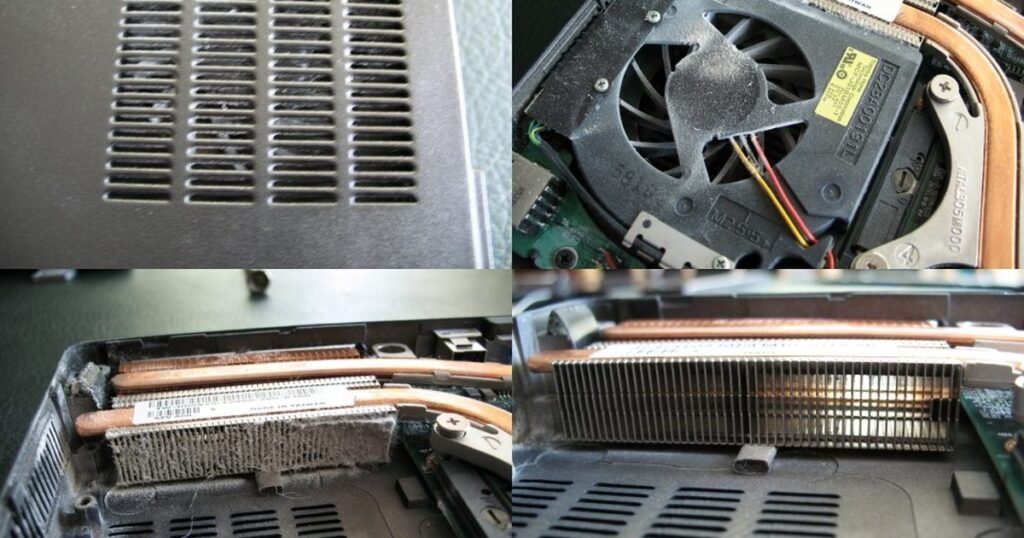
Laptop overheating searches usually start after the fan gets loud, the keyboard feels hot, or the machine shuts down mid-task. The answer is not “buy a cooling pad” first. Check the heat path: where air enters, where it leaves, what the processor is doing, and whether the laptop is blocked, dusty, or failing.
The video is by How-FixIT, an independent channel; its remedy, undervolting, is third-party tuning the advice below cautions against.
Start with the symptom, not the panic
A warm laptop is not automatically broken. Thin laptops push a lot of heat through a small shell, and the metal around the hinge can feel hot during updates, calls, games or exports. Throttling under sustained load on a thin chassis is the machine protecting itself, not a fault. Act on shutdowns, a fan at full speed while genuinely idle, slowdown during light work, or heat that is worse than your own last recorded run on the same task. Check your model’s official spec page for its thermal design rather than chasing a temperature number.
Then run a controlled test. Pick one named task you can repeat — a fixed-length video call, export, or game — and keep the charger state the same every time, so one change is the only difference. The unit of measurement is run-to-idle time: how long the fan takes to fall back to the level you heard before the task began. If you have never timed it, do not guess at a history you do not have — run the task once now and record that first number; it becomes your baseline, and later runs compare against your last recorded run, not a memory of how the machine used to feel. On a fanless laptop, read the same result from the machine settling to its pre-task idle behaviour; treat a repeat task that now stutters or slows as the fall.
- Move the same task from a soft surface such as a bed, lap or blanket to a hard, flat desk, changing nothing else. If the run-to-idle time falls, placement is contributing. It does not clear dust, a worn fan or a charging fault — only the physical checks below can.
- Keep the hard desk, then raise the back edge on a stand or two stable feet, changing nothing else. If the time falls again, clearance under the intake is helping on top of the flat surface. A flat result means the angle is not the problem.
Each result licenses one conclusion: a shorter run-to-idle time on the hard desk supports placement as a contributor and nothing more — it does not clear dust, a worn fan or a charging fault, so the physical checks below still apply. One run is a lead, not proof, and is inconclusive if the room or the air-conditioning changed, or an update, backup or scan finished mid-test. Repeat a suspicious run once before trusting it.
Give the vents room to breathe
Most laptops pull cool air through slots on the base and push warm air out through the hinge or side, so the intake needs clear air below it and the exhaust an open path behind the hinge. Do not cover the hinge or press the machine to a wall. A stand or cooling pad helps only when clearance or airflow under the intake is the problem and the exhaust is already clear; neither clears a clogged heatsink.
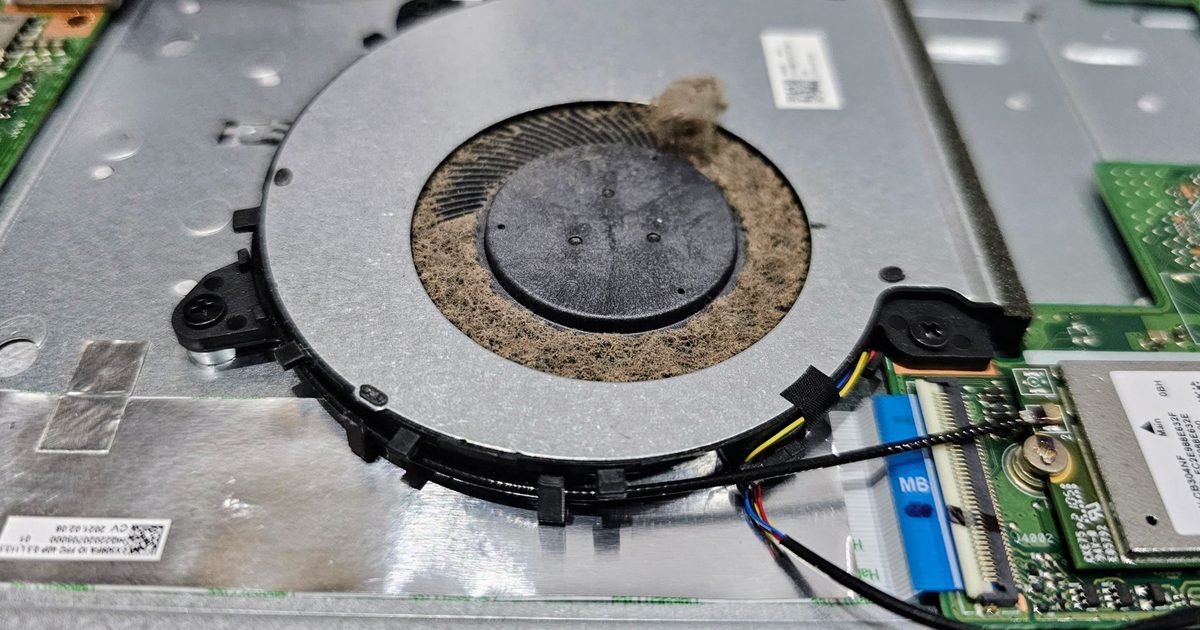
Dust is the common fix people delay
Dust does not need to look dramatic to cause heat: a thin mat of lint across a fan or heatsink can stop air moving through the fins, so the fan spins faster while less heat leaves the chassis. If you are comfortable with basic maintenance, power the laptop off, unplug it, and check the intake and exhaust with a torch. Use short bursts of compressed air from the outside only if the vents are accessible: keep the can level, hold the fan still, and watch for propellant. A steady blast can over-spin the blades, which may wear the bearings, or push dust deeper into a sealed machine. If it has never been opened and is years old, a shop clean may be worth it before replacing parts.
Check what the processor is doing
Heat often comes from one app, not the whole laptop. While the machine is hot, open Task Manager on Windows and sort by CPU, GPU, and power use, or Activity Monitor on macOS. Look for stuck tabs, cloud sync, game launchers, antivirus scans and update services. To isolate one, quit the single top consumer and repeat the same named task: if the run-to-idle time drops, that process was contributing. A restart alone is not evidence — it also cools the machine and clears the heat it had built up, so a cooler laptop afterwards proves nothing unless the load reading showed sustained high use first.
Charging heat can be normal, but sudden changes are not
A laptop can run hotter while charging because the battery, charging circuit and processor may all be active at once, especially at a low battery or during fast charging. What matters is a change from the laptop’s old pattern. If a charger, cable, dock, or power strip is new and the heat started with it, test the original charger or a known-good one that matches the wattage and connector the maker lists for your exact model — check the maker’s own spec page rather than a marketplace listing — and note that docks add their own heat. If the laptop is older, also check battery health — a worn battery can make heat and runtime problems appear together. See our guide on checking battery health at https://nexgadgets.com/how-to-check-laptop-battery-health-windows-macos-linux/ if that fits your symptom pattern.
Update firmware and drivers, but do not chase every tuner app
Thermal control depends on firmware, chipset drivers, graphics drivers, and the maker’s own power profiles. If it began overheating after a major OS update, check the support page for your exact model and install current firmware or power-management updates. A graphics driver update is worth trying only if heat appears during games, video work, or external-monitor use; it is not a general heat fix. Be careful with random fan-control and “cooling booster” apps — some make the laptop louder without fixing the cause. Use the built-in power mode first: balanced or efficiency for travel, performance only when plugged in and ventilated; if the maker utility offers several profiles, test each on the same named task.
You do not need a temperature readout: let your last recorded run-to-idle time decide “hotter than usual” for you.
Clean the desk setup before blaming the laptop
External monitors, docks, closed-lid use and cramped desks all change heat: a machine that behaves well alone can run hotter powering two screens through a hub, closed under a monitor stand, and charging at once. If you use it as a desktop, test with the lid open and the hinge exhaust clear. Move the dock away so the two devices are not heating each other, and keep the power brick off carpet and out of the exhaust path. If it still overheats on a bare desk with no dock, monitor or charger attached, the setup is not the cause.
When a repair makes sense
Check your cover first. If the laptop is still under warranty or an extended-care plan, make the maker’s service channel your first contact, and ask before anyone opens it what opening the chassis or a third-party repair does to that cover. If it is out of cover, the two tracks below and the free checks you have already run decide whether a local repair is worth quoting.
Two tracks apply, and the safety track is checked first. Safety faults skip testing: a swollen battery, a burnt smell, liquid involved, or a fan that does not spin on a machine that is clearly hot go straight to the maker’s service channel or a repairer — do not run the free checks first. Everything left is a performance or heat fault, and the free checks come before any payment: placement and airflow, the background-load reading, the vent and dust inspection, and the charger swap. Pay for service when either is true:
- Heat is worse than your last recorded run on the same named task and stays that way on a clear desk, rear raised and the original charger — the placement step does not change it and the load reading shows nothing to blame.
- There is a mechanical fan finding — a fan that rattles or grinds — regardless of whether the heat clears; a fan that does not spin on a machine that is clearly hot is the safety case above, not this one.
How far to take it:
- Heat unchanged on a clear desk with a fan that spins normally — an internal clean or fan service first; this is normally the cheap end. Consider thermal paste only if a clean fails to change the baseline, and ask to see the old paste.
- A fan that rattles or grinds — fan replacement, worth quoting only when the fan itself is the demonstrated fault and the laptop is otherwise worth keeping.
- Board-level, thermal-sensor or liquid damage — usually the point to weigh replacement rather than repair.
Ask for the quote split into diagnosis, clean or service, and parts, so you compare items rather than a lump sum: repair if it restores a laptop you still trust, replace if you are also fighting poor battery life, broken ports and weak performance.
What not to do when the laptop gets hot
Do not put the laptop in a fridge or freezer — the temperature swing can create condensation, and moisture is worse than heat. Do not block vents to reduce fan noise; that makes the machine hotter and slower. Do not keep gaming, rendering or exporting after repeated thermal shutdowns, and do not open the chassis if you are not comfortable with screws, ribbon cables and battery connectors. A local shop clean and fan inspection is money well spent; vague “optimization” without a physical airflow check is not.
A simple order to follow
Use this sequence so you do not spend money too early, safety screen first:
- A swollen battery, a burnt smell, liquid involved, or a fan that does not spin on a clearly hot machine — stop and go to service, run no test.
- Reproduce the heat on one named task and time the fan’s return to idle; that first recording is your baseline.
- Run it on a hard desk, then again with the rear raised — one change at a time.
- Check CPU, GPU and Energy load and quit the top consumer to confirm it.
- Inspect the vents and listen for dust, a rattle, a grind, or a dead spin.
- Update firmware and drivers from the maker — not third-party tuner apps.
- Decide whether a shop clean, fan replacement or battery check is worth a quote.
That order solves the cheap causes first; keep your notes, they help a technician avoid guessing.
Which check to run, and when to stop testing
| What you notice | Cheapest check | What it suggests | When paying beats more testing |
|---|---|---|---|
| Hot or loud on a soft surface such as a bed, lap or blanket | Repeat the same task on a hard desk with the rear edge raised | Placement or clearance is contributing | No — if the heat clears here, no service is needed |
| Still hot on a clear desk, fan loud while the machine is idle | Check CPU and Energy use with nothing open | Hidden background work is keeping the processor busy | Only if the load reading is normal and the heat and fan noise stay |
| Heat unchanged on a clear desk with the original charger | Look at the vents and run the same named task while listening to the fan | Possible dust, a blocked heatsink, or fan wear | Only if the heat is worse than your last recorded run on the same named task, unchanged on a clear desk, rear raised, original charger |
| A fan that rattles or grinds | Run the same named task and check airflow at the exhaust | A mechanical fan fault, not a software one | Fan replacement is the repair, regardless of whether the heat clears, if the laptop is otherwise worth keeping |
| Swollen battery, burnt smell, liquid involved, or a fan that does not spin on a clearly hot machine | None — stop using the laptop | A safety fault for service, not a DIY clean | Contact the maker’s service channel or a repairer; do not open the chassis |
| Runs warm but behaves normally on the same named task | Compare it with your last recorded run on that task | Within its own normal range | No service needed |
Questions
Is it normal for a laptop to feel hot while charging?
Some warmth is normal while charging, especially during fast charging or heavy work. Act when the laptop slows down, shuts off, smells unusual, or runs much hotter than before on the same charger and workload.
Will a cooling pad fix laptop overheating?
A cooling pad can help when the laptop’s bottom vents line up with the pad and the problem is mostly airflow. It will not fix clogged heatsink fins, a failing fan, a worn battery, or a runaway app.
How often should laptop fans be cleaned?
There is no universal schedule: homes with pets, carpets, smoke or dusty desks need checks more often, and fan noise that rises over months is the cue to inspect the vents.
Can software alone stop overheating?
Software can reduce heat when high CPU or GPU load is the cause. It cannot remove dust, repair a fan, improve blocked airflow, or fix charging hardware.
Next step: If battery age is part of the same problem, read our laptop battery health guide before you decide whether to repair or replace.
Nexgadgets provides general information, not professional advice. Always do your own research.


