Android privacy advice often jumps straight to installing another app. The better move is to decide what risk you are trying to reduce, fix the built-in Android settings first, then add only the privacy tools that solve a real gap. This Nexgadgets guide walks through the apps worth considering, the ones most people can skip, and the settings that usually matter more than another cleaner or security badge.
Start with the threat you actually have
Most people do not need a phone loaded with five privacy apps. They need fewer data leaks, fewer risky permissions, safer browsing, and less tracking from apps they already use. That difference matters because the wrong tool can add noise without making you safer. A VPN can hide traffic from a public Wi-Fi operator, but it will not stop a social app collecting data after you log in. An antivirus app may warn about a bad download, but it will not fix weak passwords or a forgotten app with microphone access. Start by naming the problem: public Wi-Fi, nosy apps, lost phone risk, spam links, location sharing, or account takeover. Once you know the risk, choose the smallest fix that covers it. Android already includes many useful controls, especially app permissions, Play Protect, Find My Device, lock-screen privacy and private DNS. Add a separate app only when it does something Android does not do well enough for your situation.
Check the built-in Android privacy controls first
Before installing anything, open Settings and look for Privacy, Security and Permissions. The exact labels vary by phone maker, but the pattern is similar. Review camera, microphone, contacts, files, location and notification access. If an app has not needed a permission in months, remove it and see whether anything breaks. Set location to approximate unless the app genuinely needs street-level accuracy. Use the privacy dashboard to see which apps recently used sensitive access. Turn on Play Protect in the Play Store, keep automatic app updates enabled, and set a strong screen lock. Also check lock-screen notifications. Hiding message previews is a small change that prevents a lot of casual exposure in trains, offices and shared homes. These settings are boring, but they reduce risk without adding another company between you and your data. If you only have ten minutes, this permission sweep beats downloading a random security suite.
VPN apps: useful, but not magic
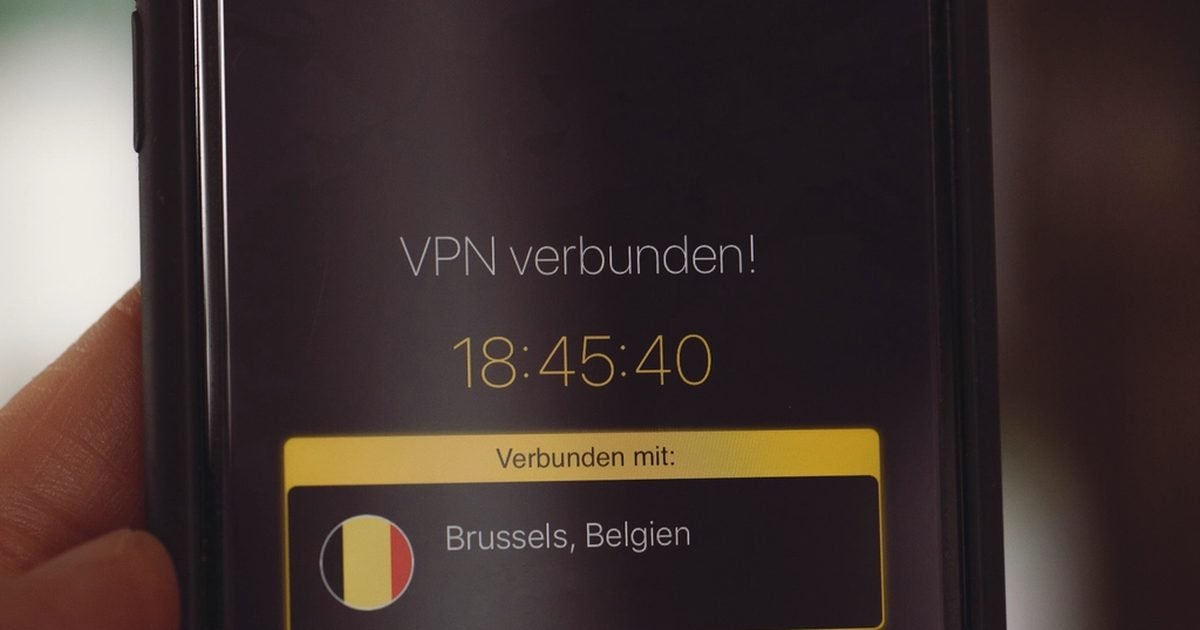
A VPN is worth considering if you often use hotel, airport, cafe or workplace Wi-Fi and want to keep the local network from seeing the sites you connect to. It can also reduce simple network profiling by your internet provider. It does not make you anonymous inside apps, stop phishing, remove malware or prevent a website from tracking you after you sign in. Choose a VPN with a clear privacy policy, independent audits where available, a kill switch, and apps that are updated regularly. Be careful with free VPNs. Some are fine for limited use, but the business model must make sense. If a VPN costs nothing, check whether it limits data, shows ads, sells an upgrade or collects more information than you want. For most readers, a reputable paid VPN is optional rather than essential. Use it for public networks and travel, not as a reason to ignore passwords, updates or permissions.
Password managers protect more than passwords
A password manager is one of the few privacy and security apps that makes sense for almost everyone. It helps you create unique passwords, store passkeys where supported, and avoid reusing the same login across shopping, banking, email and social accounts. The privacy benefit is simple: when one service gets breached, a unique password keeps the damage from spreading. Look for a manager with end-to-end encryption, a strong recovery process, passkey support, autofill on Android, and easy export if you ever want to leave. Built-in options from Google can be enough for many people, especially if they live inside Chrome and Android. A separate manager can be better if you use several browsers, share logins with family, or want cleaner organisation. The key habit is not the brand. It is using unique passwords and turning on two-factor authentication for important accounts.
Authenticator apps are still worth having
Passkeys are improving sign-in, but authenticator apps still matter because many services support them today. An authenticator app creates short codes on your phone, which are safer than SMS codes because they are not tied to your mobile number. Use an authenticator for email, banking where supported, password managers, cloud storage, shopping accounts and social platforms. The main trade-off is recovery. If you lose your phone without backup codes or cloud sync, getting back in can be painful. Store recovery codes somewhere safe, not as a plain photo in your gallery. Some authenticator apps offer encrypted cloud backup, which is convenient but adds another account to protect. If you prefer a simple setup, use one trusted authenticator and write down recovery codes for your most important accounts. That single habit blocks many account takeover attempts without changing how you use your phone every day.
Private browsers and tracker blockers
A privacy-focused browser can reduce tracking across websites, block some ads, and limit fingerprinting. It is especially useful if you often search sensitive topics, shop around for prices, or want a cleaner split between casual browsing and signed-in Google activity. The drawback is compatibility. Aggressive tracker blocking can break checkout forms, embedded maps, comment sections or login buttons. Keep your main browser for sites that need to work every time, then use a private browser for research and everyday reading. On Android, also check default browser settings, search engine choice, third-party cookies and site permissions. A browser cannot stop tracking inside separate apps, so do not expect it to fix everything. If you read Nexgadgets guides on mobile, for example, a browser choice affects website tracking controls, but it does not change what a social media app collects after you open it.

App permission managers and dashboards
Android already includes a permission manager, and that is enough for most people. Third-party permission manager apps can be helpful if they present information more clearly, remind you to review old apps, or flag unusual access. Be cautious, though. A permission app often needs broad access itself to scan your phone, so it must earn trust. Avoid tools that use scare tactics, claim every app is dangerous, or push constant cleanup prompts. The useful routine is simple: once a month, remove apps you no longer use, deny permissions that do not match the app’s job, and switch location access from always-on to only while using the app where possible. Pay special attention to flashlight, QR scanner, wallpaper, file converter and free utility apps. Some are harmless, but they often ask for more access than the job requires. If the permission list feels wrong, uninstall and use a better-known alternative.
Secure messaging apps and what they do not hide
Secure messaging apps can protect the content of your chats with end-to-end encryption. That is useful when you are sharing personal information, family details, work notes or sensitive photos. The part many people miss is metadata. Depending on the service, it may still know who you contact, when you use the app, your phone number, your profile photo or group membership. Disappearing messages help reduce long-term exposure, but they do not stop screenshots, backups or the person on the other end saving the content. For everyday use, pick a secure messenger that the people you actually talk to will use, then set sensible defaults: screen lock inside the app, hidden notification previews, disappearing messages for sensitive chats, and backups handled carefully. Do not move everything to a private messenger and then share the same information in cloud backups or unprotected screenshots.
Antivirus and cleaner apps: when to skip them
Android malware exists, but many cleaner and booster apps are not the answer. Modern Android limits what apps can do in the background, and the Play Store includes Play Protect scanning. A well-known mobile security app may be useful for people who sideload apps, help less technical family members, or want scam-link warnings and lost-device tools in one place. For everyone else, the cleaner category deserves suspicion. Avoid apps that promise dramatic speed boosts, battery miracles or secret system cleanup. They often duplicate built-in settings, show alarming warnings, or ask for broad access that creates a new privacy risk. If storage is the issue, use Android’s storage settings and remove unused apps, downloads and duplicate media. If battery is the issue, check the battery usage screen. A privacy tool should reduce exposure, not sit on your phone collecting permissions while claiming to protect you.
How to choose a privacy app without getting tricked
Use a short checklist before installing any privacy app. Check who publishes it, how recently it was updated, whether the privacy policy is readable, what permissions it asks for, and whether the business model is clear. Search for the developer name, not just the app name. Read recent negative reviews to spot billing complaints, broken updates or aggressive ads. Be wary of apps that use military language, fake countdowns, or vague claims like complete protection. Also check whether the app solves a problem Android already handles. If the answer is yes, you may not need it. If the app needs Accessibility access, notification access, VPN control, usage data access or device admin rights, slow down. Those permissions can be legitimate, but they are powerful. Install one tool at a time, test it for a week, and remove it if it adds warnings without changing your habits.
A practical setup for most Android users
A sensible Android privacy setup is smaller than many app lists suggest. Keep Android and apps updated. Use a password manager or Google Password Manager with unique logins. Add an authenticator app and save recovery codes. Use a reputable VPN only when you need protection on public networks or while travelling. Pick a privacy-friendly browser for research and general reading. Review app permissions monthly, remove unused apps, hide sensitive lock-screen notifications, and use Find My Device. That setup will not make you invisible, but it covers the common risks without turning your phone into a maintenance project. If you are setting up a phone for a parent, teenager or less technical partner, keep it even simpler: updates, screen lock, password manager, scam-link awareness and fewer installed apps. Privacy works best when the routine is easy enough to keep.
Pros and cons
What works well
- Built-in Android controls cover many everyday privacy risks without extra cost.
- Password managers, authenticators and careful permissions give a strong safety gain for most people.
- VPNs and private browsers can help in clear situations such as public Wi-Fi and sensitive browsing.
- A smaller privacy setup is easier to maintain than a phone full of warning apps.
What to watch out for
- No app can make Android fully anonymous, especially after you sign in to services.
- Some privacy apps need powerful access and can become a privacy risk themselves.
- Aggressive tracker blocking or VPN use can break websites, banking apps or workplace tools.
- Free tools vary widely, so the business model and permission list need checking.
Verdict: best for, and who should skip it
Best for Android users who want a calmer, safer phone without installing every security app they see. Skip the app-heavy approach if you have not reviewed permissions, passwords, updates and lock-screen privacy first. The main trade-off is convenience: stronger privacy sometimes means extra prompts, broken site features or a paid tool. The bottom line is simple: fix settings first, then add only the apps that solve a named risk.
Questions
Do Android phones need antivirus apps?
Most Android users do not need a separate antivirus app if they stick to the Play Store, keep Play Protect on, update regularly and avoid suspicious links or downloads. A known security suite can help if you sideload apps, manage a family member’s phone, or want scam-link warnings in one place.
Is a free VPN safe on Android?
Some free VPNs are acceptable for light use, but you need to understand the trade-off. Check the data limit, privacy policy, ads, ownership and upgrade model. If the app is free, unlimited and vague about how it pays for servers, choose another option.
What privacy setting should I check first?
Start with app permissions. Review location, camera, microphone, contacts and files. Remove permissions that do not match the app’s job, switch location to approximate where possible, and uninstall apps you no longer use.
Are private browsers better than Chrome on Android?
They can reduce web tracking and block more ads or trackers, but they do not change what separate apps collect. Many people are best served by keeping Chrome for accounts that need to work reliably and using a privacy-focused browser for research and casual browsing.
Next step: For more practical phone safety guides, browse the Nexgadgets privacy section and review one setting on your phone today rather than saving the task for later.
Nexgadgets provides general information, not professional advice. Always do your own research.