Android app permissions settings are where a harmless-looking app can become too nosy. The goal is not to deny everything and break your phone. It is to know which requests make sense, which ones should be temporary, and which ones deserve a quick no before the app becomes part of your daily routine.
Start with the permission manager, not each app one by one

The fastest way to review permissions is usually Settings, then Security and privacy or Privacy, then Permission manager. The wording changes by phone maker, but the idea is the same: you see each permission type, then every app allowed to use it. That view is better than opening apps one at a time because patterns become obvious. A weather app with location access may be reasonable. A shopping app with microphone access is harder to justify. A photo editor may need photos, but not contacts. Start with Camera, Microphone, Location, Contacts, Files, Nearby devices, Notifications, and Physical activity. If a permission feels unrelated to the app’s job, change it to deny or ask every time. Google’s own Android Help pages use the same basic idea: check access by permission type, then adjust apps that no longer need it. For a wider privacy sweep, keep the Nexgadgets privacy guides open and treat permissions as one layer, not the whole job.
Use “while using the app” as the default for location
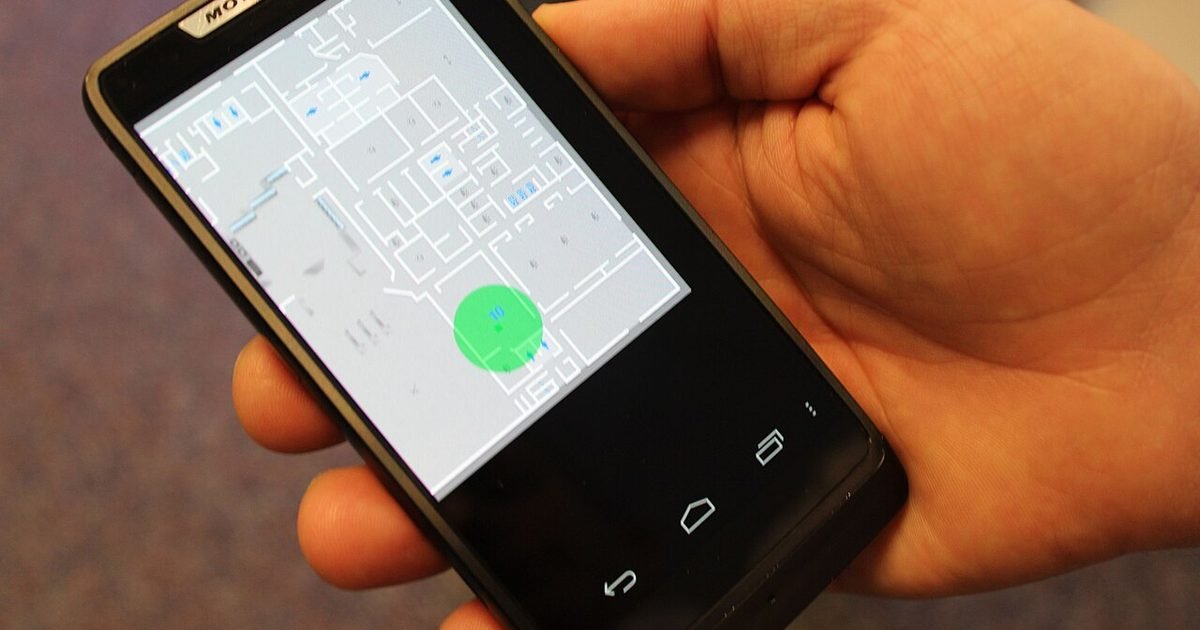
Location is the permission that most often needs a middle setting. Maps, rideshare, local weather, delivery, camera tagging, and smart-home apps may need it, but they rarely need it all day. On newer Android versions, choose “Allow only while using the app” unless the app has a clear background reason. Fitness tracking, family safety tools, and some automation apps are examples where background location may fit. Most others can work with foreground access only. Also check the precise location switch. A navigation app needs a precise fix. A weather app can often use approximate location and still be useful. If an app stops working after you reduce access, you can turn it back on later. That is the point of starting with a cautious default. You are not making a permanent decision. You are making the app prove why it needs more.
Treat microphone and camera like front-door access
Microphone and camera access deserves a stricter test because it is easy to understand and easy to abuse. Video calling, camera apps, voice recorders, translation apps, and voice assistants need access while you are using them. Most games, shopping apps, coupon apps, calculators, wallpapers, and casual utilities do not. If an app asks the first time you open it, pause before tapping allow. Ask what feature you are trying to use right now. If the answer is “none,” deny it. Android will usually ask again when a feature truly needs access. Pay attention to privacy indicators too. Many Android phones show a small camera or microphone dot when either sensor is active. If you see it when you are not recording, calling, scanning, or speaking to an assistant, open the privacy dashboard or recent permission activity and check which app used it.
Photos and files are not one permission anymore
Older advice often says “deny storage,” but modern Android permissions are more specific. Depending on your Android version, an app may ask for photos and videos, music and audio, or selected photos only. Use the narrowest choice that still lets you finish the task. If a messenger needs one image, share that image through the picker instead of granting broad library access. If a backup app needs your whole photo library, broad access may be fair, but only if you trust the service and understand where the files go. File manager apps are a special case because their purpose is broad access. Be much stricter with editing apps, filters, AI tools, and novelty apps. If they offer “selected photos,” start there. You can always add more later. This is one of the easiest permission wins because it reduces exposure without changing how most people use their phone.
Contacts and calendar access should be rare
Contacts permission is often more sensitive than it sounds because it is not only your information. It can include friends, family, clients, work names, phone numbers, and email addresses. A dialer, messaging app, video meeting app, or caller ID tool may need contacts. A shopping app, game, flashlight, wallpaper, or photo filter almost never does. Calendar access follows a similar rule. A calendar app, booking tool, travel planner, or assistant may have a reason. A social app may ask so it can find events or suggest features, but that does not mean you must allow it. If you deny contacts, most apps still work. They may lose friend-finding or invite features, which is usually a fair trade. When in doubt, deny first and see whether the app still does the job you installed it for.
Notifications are a privacy setting, not only an annoyance setting
Notifications do more than buzz your phone. They can reveal private content on the lock screen, show one-time codes, expose who is messaging you, and train you to open apps more often. Review notification permission app by app. Keep calls, messages, banking alerts, delivery updates, calendar reminders, and security prompts. Be tougher on shopping alerts, game rewards, social nudges, and apps that turn every action into a banner. Then check lock-screen behavior. You can often show notifications but hide sensitive content until the phone is unlocked. That is a good middle ground for messaging and email. If you share a desk, commute often, or leave your phone face up at home, this small change can matter more than another privacy app. It stops nearby people from reading snippets without making the phone harder to use.
Nearby devices and Bluetooth should match the gadget you use
Nearby devices permission appears when apps need to find or connect to headphones, watches, trackers, speakers, smart tags, cars, or smart-home gear. It is not automatically suspicious, but it should match a real device you own. A headphone app asking for nearby devices makes sense. A note-taking app probably does not. Bluetooth scanning can also be tied to location-like behavior, so do not grant it just because the wording sounds harmless. If you no longer use a gadget, remove the app’s permission or uninstall the app entirely. Companion apps are easy to forget after setup. They may keep permissions long after the watch, camera, speaker, or tracker is sitting in a drawer. Make this part of your six-month phone clean-up: unused gadgets, unused apps, unused permissions.
Special app access is where the bigger risks hide
The normal permission list is only half the picture. Android also has special app access for things like display over other apps, notification access, usage access, install unknown apps, device admin apps, VPN, accessibility, and unrestricted battery use. These permissions can be useful, but they are powerful. Password managers may need accessibility or autofill support. A launcher may need usage access. A trusted VPN app needs VPN rights. A random cleaner app, coupon tool, or keyboard theme should not get broad control just because it asks. Be careful with install unknown apps. Leave it off unless you are installing from a source you trust, then turn it off again. Accessibility access is also worth checking because it can read or control parts of the screen. If you do not remember why an app has special access, remove it and see whether anything you rely on stops working.
Greyed-out permissions usually have a reason
Sometimes an Android permission is greyed out, missing, or cannot be changed. Do not assume the phone is broken. Work profiles, school phones, employer management, parental controls, device admin apps, family safety tools, or Android version limits can all change what you can edit. Some permissions also appear only after an app asks for them. If a permission is greyed out on a personal phone, check whether the app is set as a device admin app or whether a work profile is active. If the phone belongs to an employer or school, do not try to bypass policy. Ask the administrator what is managed and what is personal. On your own phone, removing device admin rights or uninstalling an app may restore control. The safe path is to understand who controls the setting before forcing a change.
Make a five-minute monthly review habit
The best permission setup is not a one-time clean-up. Apps update. Android changes. You install a tool for one trip, one scan, one meeting, or one sale, then forget it. Once a month, open Permission manager and review the sensitive groups: location, microphone, camera, contacts, files, notifications, and special app access. Remove anything that feels stale. Then uninstall apps you have not used in months. This habit is faster than trying to build a perfect setup on day one. It also catches permission creep after app updates. If you want a practical order, start with location, then microphone and camera, then contacts and files, then notifications. You will catch the biggest privacy mismatches before you spend energy on minor settings.
Pros and cons
What works well
- You cut unnecessary access without deleting every app or changing phones.
- You can keep useful features by choosing one-time, while-in-use, or selected-photo access.
- The review takes only a few minutes once you know which permission groups matter.
- It helps spot forgotten apps that still have access after you stopped using them.
What to watch out for
- Menus vary between Pixel, Samsung, Motorola, Oppo, and other Android phones.
- Some apps keep asking again, so you may need to deny more than once.
- A few features break until you grant access again, especially location, files, or nearby devices.
- Managed work or school phones may block changes that personal phones allow.
Verdict: best for, and who should skip it
Best for anyone who installs useful apps but does not want to hand over access by habit. Skip the heavy lockdown approach if you need every automation, tracker, and smart-home feature to run in the background. The main trade-off is convenience versus control. For most people, “deny first, allow when the feature needs it” is the safest everyday setting.
Questions
Should I deny every Android app permission I can?
No. Denying everything can break features you actually use. Start with sensitive permissions, choose the narrowest option, and allow access when the app’s job clearly needs it.
Why does an app ask for location when it is not a maps app?
Some apps use location for local results, weather, nearby devices, delivery, photos, or fraud checks. That does not mean background or precise access is needed. Try approximate or while-in-use access first.
Is “allow only while using the app” enough?
It is a good default for many apps. It stops background access, but the app can still use the permission when open. Use one-time access for apps you rarely trust or rarely use.
What should I check first on a new Android phone?
Check location, microphone, camera, contacts, files, notifications, and special app access. Then uninstall preloaded apps you do not use, where the phone allows it.
Next step: Open your Android Permission manager now and review Location, Microphone, Camera, Contacts, Files, and Notifications in that order. If you want the broader version, read the Nexgadgets guide to Android privacy apps and settings next.
Nexgadgets provides general information, not professional advice. Always do your own research.