Samsung phone privacy settings can feel scattered because One UI, Android, Google, Samsung account services, and individual apps all have their own switches. The payoff for doing this in the right order is simple: you cut the noisy sharing first, keep the features you use, and avoid turning your phone into a chore. This Nexgadgets guide focuses on the settings that change real daily exposure, not obscure toggles you will never remember.
Start with the permissions dashboard, not the privacy menu
The fastest useful check is the permissions view: Settings, Security and privacy, Privacy, then Permission manager. Start with camera, microphone, location, contacts, nearby devices, files, and notifications. You are looking for apps that gained access once and never gave it back. A photo editor may need camera access while you are using it; a shopping app rarely needs always-on location; a casual game should not need contacts. On current Android builds, you can usually choose Allow all the time, Allow only while using, Ask every time, or Do not allow, though the exact wording can vary by One UI version and app. The practical rule is to move anything sensitive to Ask every time unless the app breaks in a way you care about. This step is less flashy than installing a privacy app, but it changes more because it limits the raw inputs apps can collect before any setting inside the app even matters.
Treat location as three different risks
Location is not one switch. On a Samsung phone, think of it as precise location, background location, and location history inside account services. Precise location should be reserved for maps, rideshare, weather at your exact suburb, camera geotags if you want them, and safety features you understand. Approximate location is enough for many store, news, and entertainment apps. Background location should be rare. If an app can track while you are not using it, there should be a clear reason, such as navigation, family safety, fitness tracking, or a find-my-device feature. Then check Google Maps Timeline and any Samsung account location features you use. Turning off one layer does not always stop another. If you travel, share a family device, or hand your phone to kids, this is where small changes have a big privacy effect without making the phone less useful.
Limit microphone and camera access before you chase app settings
Microphone and camera controls are worth checking because they are easy to audit and easy to forget. In Permission manager, sort through every app with access. Messaging, video calls, banking verification, camera apps, and voice recorders may have a good reason. Games, coupon apps, document readers, and many shopping apps usually do not. Samsung also gives visible privacy indicators when the camera or microphone is active, but indicators only help after access has started. The better move is to trim the list first. If you use voice assistants, decide whether wake-word access is worth the convenience. Some people want hands-free calling in the car; others only use the assistant by tapping a button. Neither choice is wrong, but the setting should match your real habits. If you record meetings or voice notes, use the same thinking: only keep microphone access for apps you would trust with the room you are in.
Reduce personalised ads in Samsung and Google services
Ad settings are split because Samsung phones often carry both Samsung services and Google services. Check Settings, Security and privacy, More privacy settings, Ads, and also look through your Samsung account privacy choices. The exact path shifts by model and software version, so use Settings search for “ads”, “customisation”, and “personalisation” if needed. Your goal is not to make advertising vanish. It is to reduce the link between app activity, device identifiers, and ad profiles. Reset or delete the advertising ID where offered, turn off personalised ad options you do not want, and review Samsung Customisation Service if it appears on your device. This is a good place to be realistic: some free apps still collect data under their own terms, and websites still have cookies. The value is in reducing one easy-to-fix layer instead of assuming one master switch can clean the whole phone.
Use Secure Folder for genuinely separate apps, not everyday clutter
Secure Folder is one of Samsung’s best privacy features when it is used for the right job. It creates a separate, locked space for apps and files, which can help if you want banking, work chat, identity documents, private photos, or a second copy of an app away from the main app drawer. It is not a magic cloak. Notifications, backups, account sign-ins, and cloud sync still need thought. Set a separate lock method, choose whether Secure Folder appears openly, and be careful about adding too many everyday apps until it becomes another messy phone inside your phone. A good setup is boring: a few high-trust apps, minimal notifications, and files you would not want exposed if a friend, child, or repair shop handled the unlocked device. If you need a wider Android privacy checklist, Nexgadgets already has a broader guide at Android privacy apps and settings.
Clean up lock-screen previews and notification habits
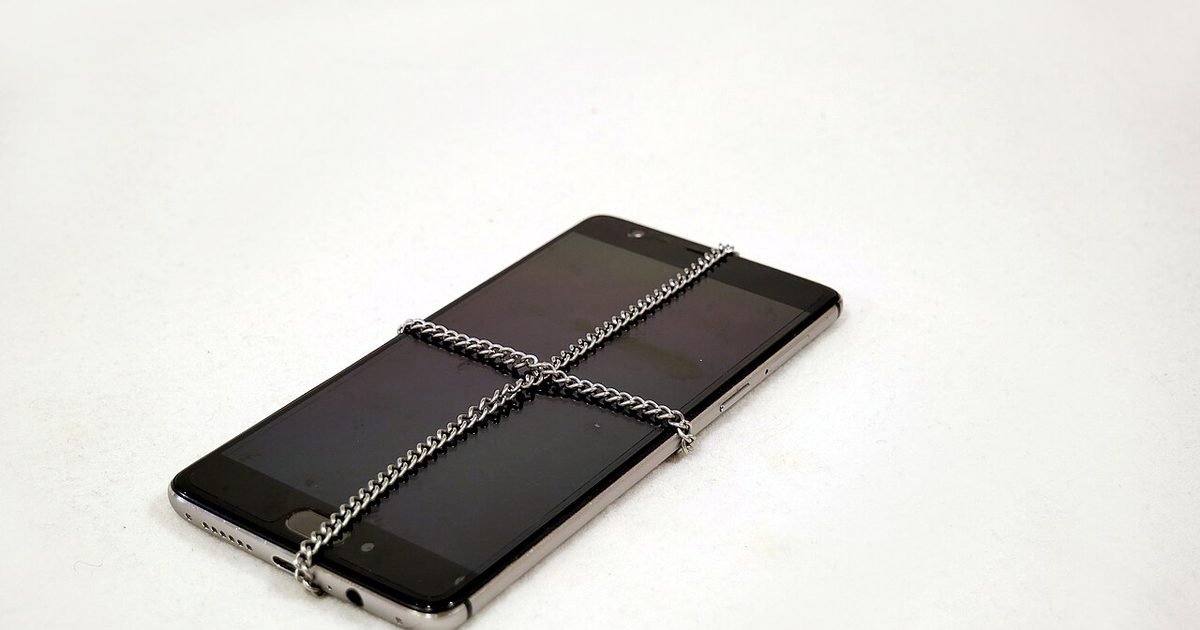
A locked phone can still leak plenty. Message previews, email subjects, calendar details, delivery codes, smart-home alerts, and banking prompts may appear before the phone is unlocked. In Settings, Notifications, and Lock screen notifications, choose whether content is hidden, shown, or limited. The best option depends on your life. If your phone sits face-up on a desk at work, hide sensitive content. If you mainly live alone and need quick glanceable alerts, a lighter setting may be fine. Also review which apps can send high-priority notifications at all. Privacy is partly about less exposure and partly about less interruption. A crowded notification shade trains you to tap without thinking, which is how phishing, fake delivery notices, and accidental oversharing win. Start with messaging, email, banking, authenticator, health, and workplace apps, then silence the apps that only want attention.
Check Samsung account, Google account, and backup choices together
Backups are easy to ignore because they feel like a safety net, not a privacy setting. A Samsung phone can back up through Samsung Cloud features, Google backup, app-specific cloud services, or a mix. Review what is actually being saved: contacts, call logs, messages, photos, app data, Wi-Fi details, and device settings. Backups are useful when a phone breaks, but they also widen where your data lives. If you do not need a data type backed up, turn it off. If you do need it, make sure the account uses strong sign-in protection and a recovery method you control. The same applies to photo sync. Automatic cloud photo backup is convenient, but it should be a choice, especially if your camera roll contains identity documents, children, work screens, or health paperwork. The goal is not zero cloud use. It is knowing which cloud holds which part of your life.
Review nearby sharing, Bluetooth, Wi-Fi, and device discovery
Wireless convenience can expose more than people expect. Quick Share, Nearby Share-style features, Bluetooth visibility, Wi-Fi auto-join, and smart-device discovery are useful, but they should not be left wide open if you rarely use them. Set sharing visibility to contacts or your own devices where possible, and avoid public visibility unless you are actively receiving something. Delete old Bluetooth pairings for rental cars, sold headphones, hotel speakers, or office devices you no longer use. Turn off auto-join for networks you do not trust, especially open public Wi-Fi with generic names. None of this requires paranoia. It is basic housekeeping. If your phone constantly offers to connect, cast, pair, or share with things around you, it is doing extra work in public spaces. Tightening those settings makes accidental sharing less likely and can also reduce clutter in the quick settings panel.
Be careful with app clones, work profiles, and side-loaded apps
Samsung phones can support features such as Dual Messenger, work profiles from employers, and apps installed outside the Play Store or Galaxy Store. These can be useful, but they change the privacy model. A cloned messaging app may use a second account with its own contacts and notifications. A work profile may let an employer manage business apps and apply security rules inside that profile. A side-loaded app may not get the same store checks or update flow. Before using any of these, ask what problem it solves and what new access it creates. If the answer is vague, skip it. For work profiles, read the management notice on the phone rather than guessing what your employer can see. For side-loaded apps, only use sources you trust and keep the setting disabled when you are done. Convenience features are fine when they are deliberate, not when they become a back door for messy app habits.
Set a simple monthly privacy reset you will actually do
The best privacy setup is the one you revisit. Apps update, One UI changes, and your habits change. Once a month, spend ten minutes on the same small loop: remove apps you no longer use, check Permission manager, review lock-screen notifications, scan location access, and update the phone. Do it when you pay bills, charge accessories, or clean photos so it becomes part of an existing routine. If you share the phone with a partner or child, add one more step: check which accounts are signed in and whether any browser profiles or autofill details are mixed. A Samsung phone has many privacy controls, but you do not need to master all of them at once. Handle the settings that touch daily data first, then tighten the edge cases only if they match how you use the device.
Pros and cons
What works well
- You can cut app access and notification leaks without installing another privacy tool.
- One UI gives practical controls for Secure Folder, permissions, lock-screen content, and sharing visibility.
- Most changes are reversible, so you can test stricter settings and loosen only what breaks.
What to watch out for
- Samsung, Google, carrier, and app settings are split across several menus.
- Older Galaxy models may use different labels, so Settings search is sometimes needed.
- Turning off too much at once can break useful features such as maps, wearables, payments, or family safety alerts.
Verdict: best for, and who should skip it
Best for Samsung owners who want a calmer, more private phone without wiping it or switching brands. Skip the all-at-once approach if you rely on work management, family tracking, or accessibility tools; change one group of settings at a time so you know what caused any problem. The main trade-off is convenience versus exposure, and the right answer is the one you can maintain.
Questions
Should I turn off every permission on my Samsung phone?
No. Remove permissions that do not match the app’s job, but keep access that supports features you use. Maps needs location while navigating, a camera app needs the camera, and a voice recorder needs the microphone while recording.
Is Secure Folder enough to protect private photos and files?
Secure Folder helps, but it is not the whole setup. Use a strong lock, check whether cloud backup is enabled, limit notifications from apps inside it, and avoid filling it with apps that do not need extra separation.
Do Samsung privacy settings stop Google tracking too?
Some settings affect Android-wide access, such as permissions. Google account activity, ad personalisation, Maps Timeline, and backups may need separate review inside Google settings or your Google account.
How often should I review these settings?
A quick monthly review is enough for most people. Check sooner after a major One UI update, after installing several new apps, or before travelling with sensitive work or banking apps on the phone.
Next step: Start with Permission manager and lock-screen notifications today, then read the broader Nexgadgets Android privacy apps and settings guide if you want a full phone privacy pass.
Nexgadgets provides general information, not professional advice. Always do your own research.